

You have three pictures for a new product shot. One shows the speaker you sell. One is a close-up of woven fabric. One shows the kind of light you want. If you ask MiniMax H3-Image to “combine these,” the model has to guess whether the second file is a material, a new object, or the backdrop. Name that decision in the prompt. You want the speaker from one image, fabric from another, and only the lighting from the third.
This MiniMax H3-Image prompt guide adapts multi-reference role writing for KreadoAI: assign each upload a job, follow a Create / Use Picture N / Preserve / Change / Keep / Final composition structure, and copy three production-ready prompts. Official MiniMax image-edit documentation describes up to 16 references on the API path. On KreadoAI, use the reference limit shown in the AI Image Generator for your account — do not assume every UI path exposes the full API count.
MiniMax H3-Image is for long, reference-heavy briefs in one pass. It is not a stand-in for Seedream-style multi-round consistency claims. If you need many small edits on the same file over several rounds, start with the Seedream 5.5 prompt guide. For detail-first stills and format paths, see the GPT Image 2.6 prompt guide. For how all three models landed on KreadoAI, read KreadoAI new AI image models.
Give Each Reference a Job
Start with the picture that owns the subject or the existing composition. Then add a reference for each decision the first image cannot answer: texture, outfit, lighting, room layout, or replacement object.
A useful rule: if you cannot say what a new image contributes in one short phrase, leave it out of the first pass. Bring it back only when the current result shows a missing detail that file can supply.
| What you want to make | Start with | Add a reference when |
|---|---|---|
| One edit to an existing picture | The image you want to edit | The replacement object or material has a specific look you need to match |
| A new scene with the same product | A clear photo of the exact product | You need texture, lighting, or composition from another image |
| A new shot of the same character | One clear face or character reference | A separate image adds an outfit, pose, or view you cannot see in the first |
| A room or scene with several items | The layout image, if you have one | Each added file supplies a distinct object or a missing view |
For a catalog edit, start with a sharp photo that shows the product outline and controls. The texture reference can be a crop of the fabric itself. If the lighting reference features another speaker, crop that speaker out when possible. Then describe what you need from each image in the prompt so the model has fewer competing candidates for the main subject.
A group of references can share a job. Two angles of the same bag can establish front and side. If one bag is a different colorway or has different hardware, pick the version you want to preserve and call it out by number.
Use This Prompt Structure
Write the deliverable in the first sentence. Then name the reference, its role, and the parts that carry forward. Put the final framing and any exact visible text at the end.
Create [one deliverable] for [where it will be used]. Use <Picture 1> as the source for [subject identity or base composition]. Preserve [specific features visible in Picture 1]. Use <Picture 2> for [one trait] and apply it to [named part]. Use <Picture 3> for [one trait that affects the scene]. Change [the requested elements]. Keep [the rest of the image or subject details] as described above. Final composition: [framing, placement, and any exact visible text].
Remove the lines for any images you left out. If you rearrange or replace a file, recheck its number against the upload order shown in KreadoAI. Keep the angle brackets around Picture labels when you follow this template. Some hosted API examples use plain labels such as “image 1”; on KreadoAI, follow the picture labels shown in the interface.
Give output settings their own step. If the interface offers an aspect-ratio control, select the ratio there. For a first pass, use one output and a draft size where available. Inspect that first image for reference roles and composition, then check fine detail again at the final size.
Soft expectation: naming roles usually reduces wrong merges more than rewriting the whole mood paragraph. Results still vary by upload quality, crop, and brief conflict — inspect identity, layout, and borrowed traits before you ship.
Three Copyable MiniMax H3-Image Prompts
Upload your own images in the order listed. On KreadoAI, open MiniMax H3-Image, attach references up to the UI limit, paste the prompt, and generate.
1. Build a complete campaign world from one long brief
MiniMax H3-Image’s advantage is turning a complex concept into one finished visual world — product plus room, props, and mixed light — not a lone pack shot on white.
Upload in this order when you have refs: (1) speaker identity, (2) woven grille texture, (3) evening living-room mood/light. Or write the full world in one prompt if refs are not ready.
Create one 16:9 brand campaign lifestyle still for a portable speaker launch. Use <Picture 1> for speaker identity: matte slate body, woven grille, button layout. Preserve body proportions and grille frame from <Picture 1>. Use <Picture 2> only for grille fabric texture. Use <Picture 3> for evening living-room lighting and window city bokeh. Build a complete scene: walnut coffee table, linen sofa, art books, ceramic cup, floor plant, warm practical lamp, consistent cool-warm mixed light, natural contact shadows. Keep the product free of lettering. Final composition: speaker centered in a lived-in room, cinematic, space to crop for ads.
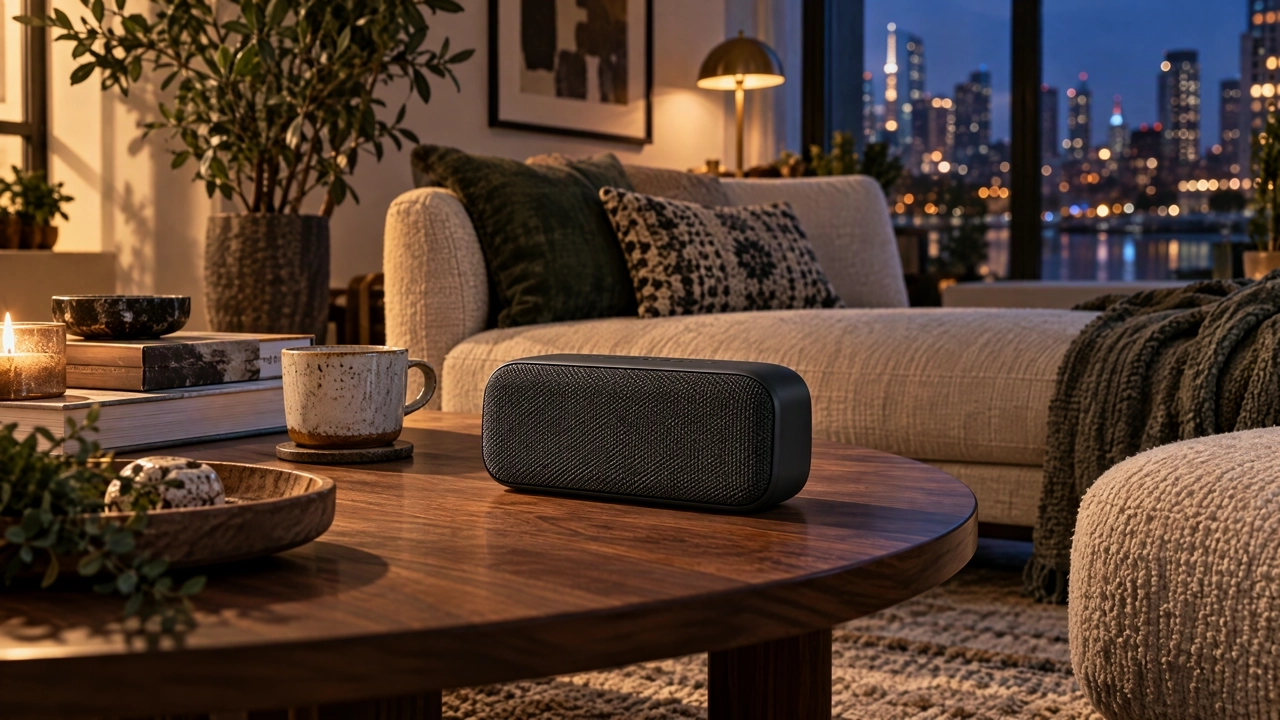
Advantage on display: one coherent world from a long brief and role-tagged references.
Check product silhouette first, then whether sofa, lamp, and window light share one lighting plan. If the room overpowers the product, shorten the prop list and keep Picture 1 as identity.
2. Keep a character recognizable across scenes
Upload in this order:
- Clear portrait of an original adult character with a short side-parted haircut
- Separate reference showing a rust-colored jacket with a stand collar
- Wide reference for a rainy greenhouse at dusk
Create one waist-up storyboard frame of the character from <Picture 1> holding a small seed tray in a greenhouse. Use <Picture 1> for facial proportions, haircut, and the direction of the hair part. Preserve the adult identity cues visible in <Picture 1>. Use <Picture 2> only for the jacket cut, stand collar, and rust color. Use <Picture 3> for the greenhouse structure and cool dusk lighting. Change the action to holding a small seed tray; keep hands readable. Keep the face and hands clear of heavy blur. Final composition: eye-level camera, waist-up, room at the right edge for a crop.
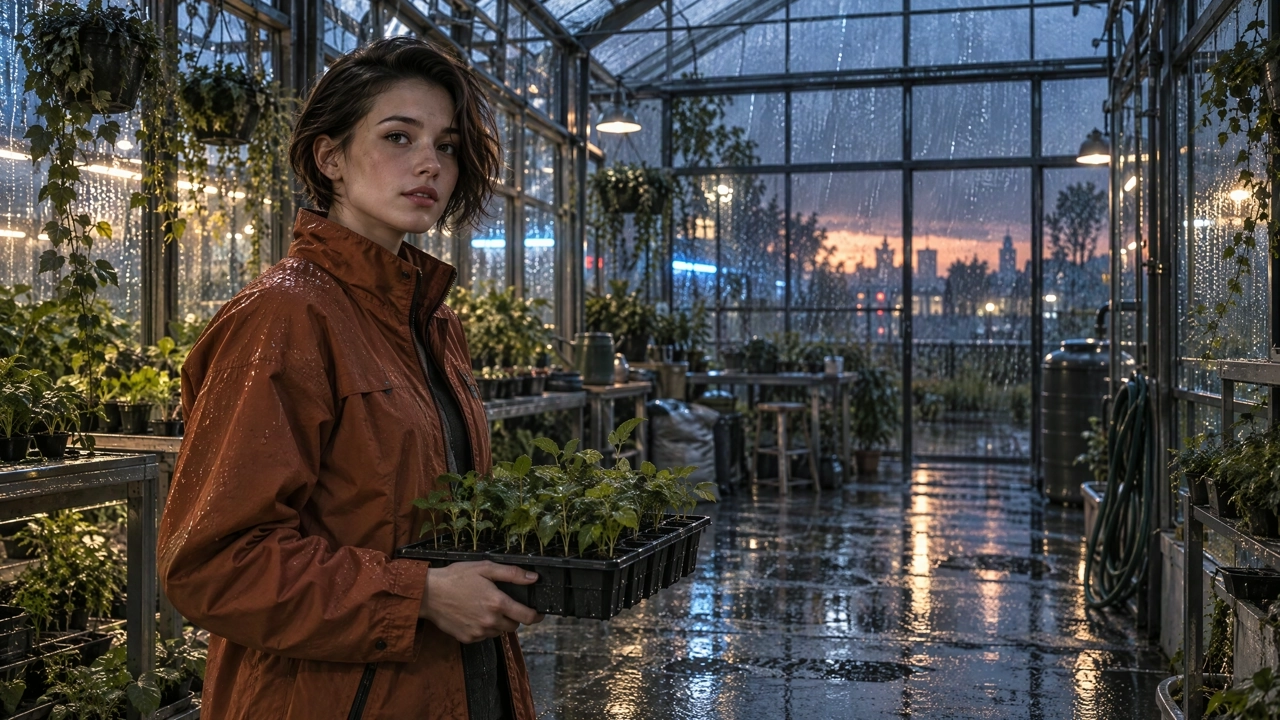
Advantage on display: face, outfit, and scene each come from a named reference, then read as one shot.
Compare face shape, hair part, and jacket collar before the next frame. Reuse portrait + outfit; only swap the scene ref. This remains a one-pass multi-reference brief, not Seedream-style multi-round consistency.
3. Assemble many object roles into one spatial scene
When the brief needs a full loft from many parts, give each object a role. Official materials discuss large reference sets; on KreadoAI stay inside the UI limit and prefer clear groups over a crowded stack.
Create one 16:9 design-loft wide shot built from multiple object references. Use <Picture 1> for empty loft layout and dusk window light. Use separate references for: ribbed cream vase on shelf, rust jacket on chair, slate speaker on console, woven throw, floor lamp, framed sketch, seed tray on table, ceramic mug, plant by the window. Preserve a readable perspective and one lighting plan. Keep the room uncluttered: each object has space to read. Final composition: wide living loft, consistent dusk light, no brand logos.
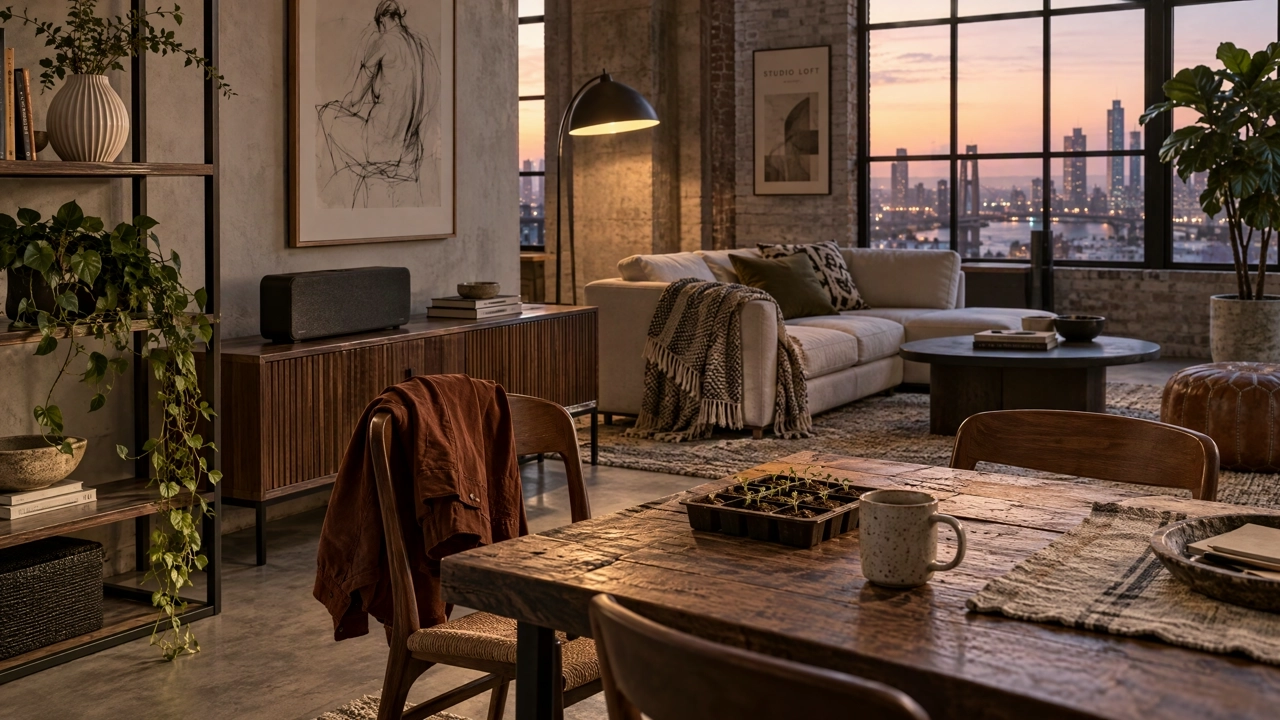
Advantage on display: a complete spatial world from many inputs, not a single product hero.
Inspect face/product/room groups separately. If two refs fight, pick one primary per group. If the UI allows fewer uploads than your list, cut to the roles that still define the job.
Open MiniMax H3-Image on KreadoAI →
When More Reference Images Help
Add a file when it contributes information the current set lacks. A side view helps when a product’s connectors or handle are hidden in the front photo. A second image of the same character can show an unfamiliar angle. A room with several exact pieces can use a separate reference for each piece.
MiniMax’s model materials show large reference sets — for example an empty room plus many separately referenced items, or tests that group character, equipment, and workshop across many files. The useful idea is grouping: number the files before uploading, state which group controls each part, and choose one primary image within any group where the references disagree. Inspect face, product, and room separately in the result.
On KreadoAI, stay inside the UI reference limit. The “up to 16” figure belongs to the MiniMax API image-edit path. If your interface allows fewer uploads, design the brief for that count: fewer, clearer roles beat a crowded stack the UI cannot accept.
Fix the First Thing That Went Wrong
Keep inputs, aspect ratio, and output size fixed when testing a wording change. Change one variable at a time.
| Symptom | First thing to change |
|---|---|
| The face resembles the outfit model | Crop the outfit reference to clothing only, or use a flat-lay photo |
| The product inherited the wrong color | Say which surface may change and which image owns enclosure color |
| An extra object appeared from a style reference | Crop to the part that shows the style or lighting you need |
| The edit changed the crop or moved the headline | Explicitly keep base aspect ratio, camera position, and headline placement; compare at the same zoom |
| The model appears to have used the wrong file | Compare upload order to every Picture label before rewriting the prose |
| Multiple edits made the scene drift | Go back to the original base image and apply one change at a time |
Once the layout works, review the final file for small text, reflected objects, product geometry, and any new detail that matters to the deliverable. Soft promise: role labels help more often than longer adjectives — they do not remove the need for a visual QA pass.
How to Run This on KreadoAI
- Open the AI Image Generator with MiniMax H3-Image selected, or start from the MiniMax H3-Image model page.
- Upload references in the order your prompt numbers them, within the UI limit.
- Paste a Create / Use Picture N / Preserve / Change / Keep / Final composition brief.
- Set aspect ratio in the UI controls, generate one draft, then inspect roles before a final-size pass.
FAQ
Do I need 16 reference images?
No. Start with the fewest that describe the job. An edit to an existing picture can begin with one. Two or three are enough to assign identity, a borrowed detail, and a scene in the examples above. Add a reference when it shows something you still need. Cap uploads at the KreadoAI UI limit even if the MiniMax API documents up to 16.
Can one picture control only the style or lighting?
Yes. Name the visible qualities you want to carry over, such as warm side light, a muted palette, or a paper texture. Keep the subject anchored to a separate picture so style does not rewrite identity.
Does the first image always set the composition?
The first image is numbered first. Its role comes from your instructions. For edits, explicitly say that it is the base and name what should stay where it is.
How is MiniMax H3-Image different from Seedream 5.5 for prompts?
MiniMax H3-Image prompts emphasize many named references in one brief. Seedream 5.5 prompts emphasize multi-round keep-lists on the same file. Do not copy Seedream multi-round consistency language into MiniMax H3-Image briefs. Route by job: see Seedream 5.5 prompt guide and GPT Image 2.6 prompt guide, or the overview in KreadoAI new AI image models.
What if the interface only lets me upload fewer images?
Use the limit shown in that interface. Redesign the brief around the files you can attach. Prefer clear roles over forcing a larger set through a path that does not support it.
Related Guides
- KreadoAI new AI image models — GPT Image 2.6, Seedream 5.5, and MiniMax H3-Image at a glance
- GPT Image 2.6 prompt guide — detail-first stills and edit prompts
- Seedream 5.5 prompt guide — multi-round keep-list templates
- MiniMax H3-Image — model page and trial entry
MiniMax H3-Image rewards prompts that sound like an art brief: who owns identity, who owns fabric, who owns light, what must stay, what may change. Open MiniMax H3-Image on KreadoAI, upload two or three role-labeled references, and run one of the templates above as your first pass.