

A gpt image 2.6 prompt works when it names the deliverable first, then the visible details, then the constraints.
Open the GPT Image 2.6 AI Image Generator and select GPT Image 2.6. Choose Sunburst when the frame needs fine material detail or a careful edit. Choose Flare when you want a faster draft to test composition or color. On KreadoAI both modes share the same price, so pick by task. GIF and SVG export paths on KreadoAI are KreadoAI extensions built on GPT Image 2.6 output; they are not native Sunburst or Flare formats. For how this model sits next to Seedream 5.5 and MiniMax H3-Image, see what's new with KreadoAI AI image models.
Copy this GPT Image 2.6 prompt template
Result: asset type, channel, and aspect ratio Subject: color, material, count, and how each piece sits Setting: background, surface, and atmosphere you can see Light: direction, and what that light should reveal Framing: camera angle, left or right placement, empty side Text: every line in quotes, size hierarchy, and side; or "no text" Keep out: logos, prices, URLs, and extra sentences Mode cue: Sunburst for detail or precise edits; Flare for a faster draft
For an edit, replace Text and Keep out with two clearer blocks:
Change: only the named edit Keep: identity, geometry, layout, lighting, and any quoted labels that must stay
If you upload references, number them and assign a role in the same prompt: product identity, style only, clothing, or background. Do not say “use these photos” without saying what each one controls.
Each job below fills the template once. The stills show the layout the prompt asks for. Judge the file you generate, not the sample frame. Quoted type is a strong instruction, not a guarantee of perfect spelling. Read every letter after it generates.
Product photo: push material detail (Sunburst)
GPT Image 2.6’s advantage on pack shots is fine material rendering when the prompt names glass, metal, liquid, fabric, and light separately. This still has no headline. Prefer Sunburst when caustics, brushed metal, and droplet refraction must read in one frame.
Result: 16:9 ecommerce hero. Subject: cut-glass perfume bottle, amber liquid, brushed gold collar, no readable brand. Setting: wet black slate, jasmine petals, charcoal silk ribbon. Light: softbox from upper left, cool rim from the right. Framing: shallow DOF, sharp on glass edge. Text: no text.
Create a photorealistic 16:9 ecommerce hero of a cut-glass perfume bottle with faceted crystal, amber liquid, and a brushed gold collar on wet black slate. Show sharp slate reflections, scattered water droplets with refraction, white jasmine petals, and a folded charcoal silk ribbon. Softbox key from upper left and a cool rim light from the right. Shallow depth of field, razor-sharp glass edge and fabric weave. No readable brand name, no price, no watermark.
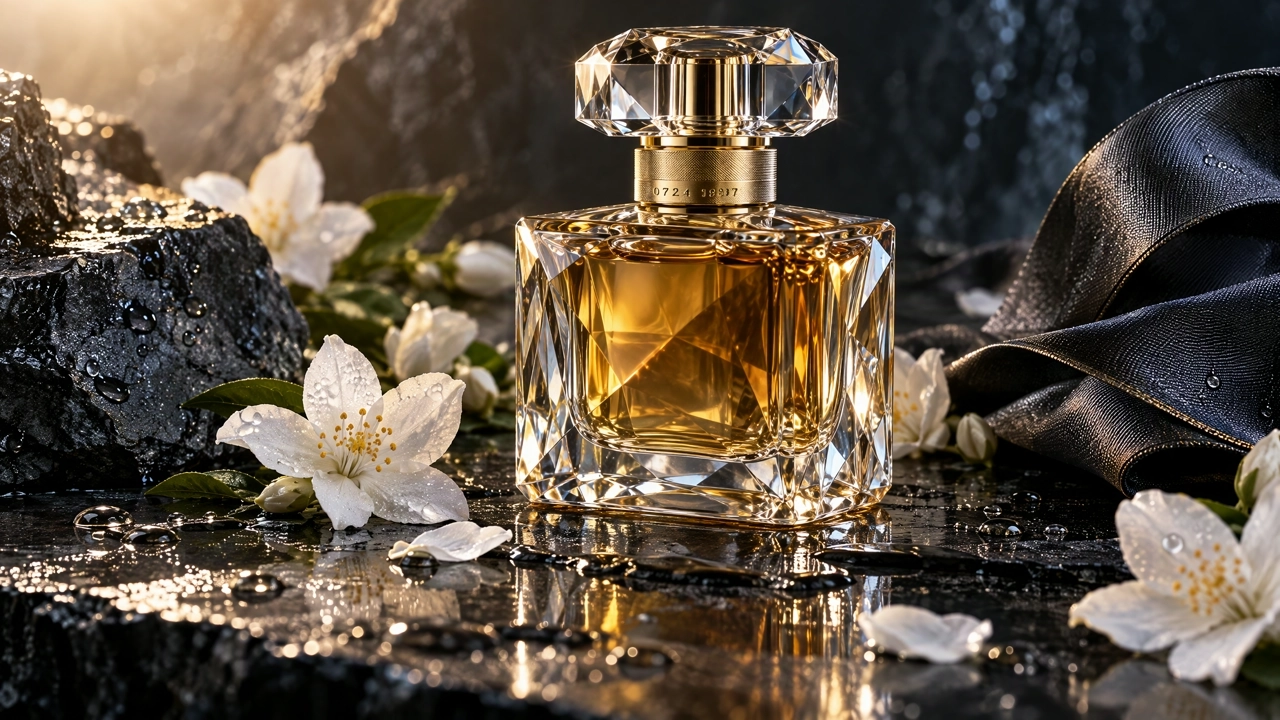
Check the result: crystal facets, brushed gold, droplet refraction, and ribbon weave all read at once. If materials look flat, raise quality in Sunburst and name one missing cue (\"visible glass caustics\"). Use Flare only to test composition first, then switch to Sunburst for the keepable still.
Try this prompt in GPT Image 2.6.
Feature poster: quote hierarchy, not one slogan
Write every string before you describe the product. This earbuds poster has five locked lines: large CLARITY, medium All-day fit, then three equal features 24h charge, IPX4 ready, USB-C. Product on the left, type on the right. Count the lines. Ask for no extras. Then proof spelling yourself.
Create a 16:9 consumer-electronics feature poster. Left third: matte graphite wireless earbuds case open with one earbud upright, dramatic rim light. Right two-thirds on warm ivory with exactly five text strings: large headline "CLARITY"; medium subhead "All-day fit"; then three equal feature lines "24h charge", "IPX4 ready", and "USB-C" with thin icons. Hierarchy: headline largest, then subhead, then three smaller equal lines. Soft studio light. Render each string once. No other words, no price, no URL, no logo.
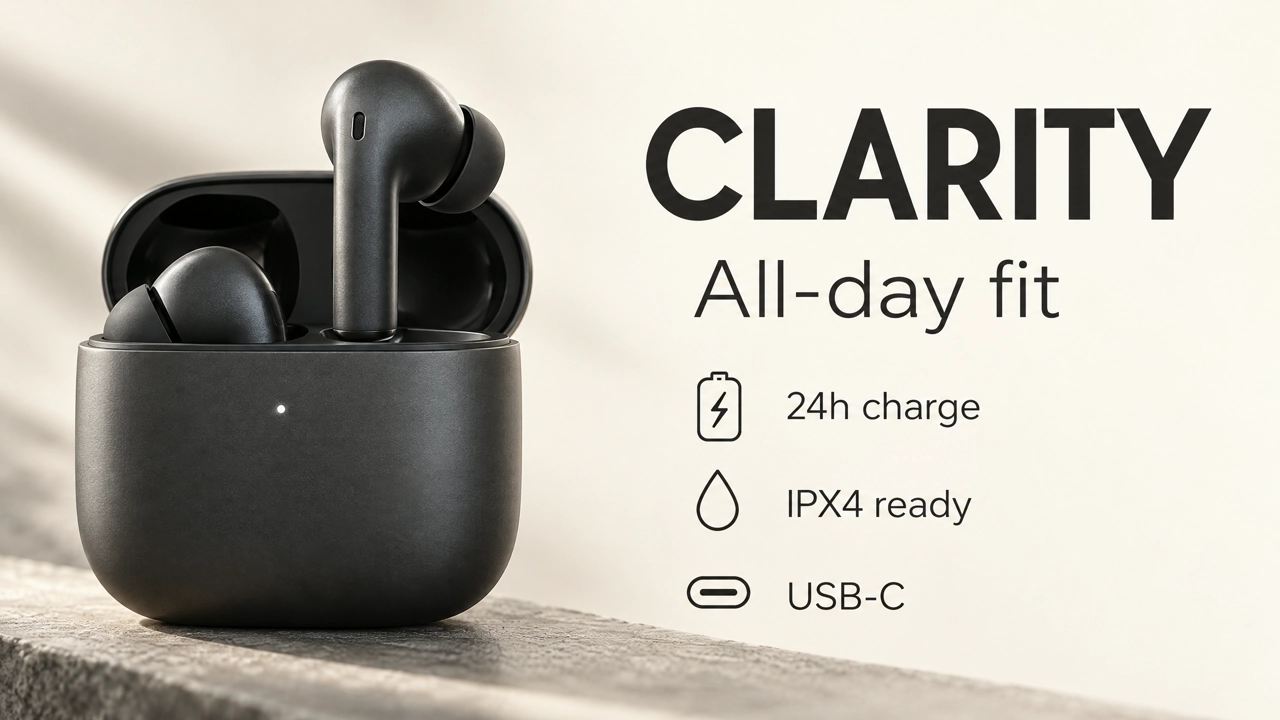
Check the result: five strings only, hierarchy readable, type clear of the product. If a sixth line appears, re-quote the five strings and say “no other words.” If letters fail, keep the product still and set type in a design tool. After the layout works, make other sizes in the Multi-Size Ad Image Generator.
Try this poster prompt in GPT Image 2.6.
Edit: separate change from keep
Upload the daytime Mediterranean house still first. The edit prompt names one change and lists what must stay. Do not mix “make it prettier” with a geometry lock in the same vague sentence.
Change: add pink bougainvillea across the facade and warm the afternoon light. Keep: house massing, cream walls, blue shutters, window rhythm, camera angle, and crop.
Using the provided photograph of the Mediterranean house, change only the facade planting and the light: add pink bougainvillea climbing across the cream walls, and warm the afternoon light. Keep the same house massing, cream wall color family, blue shutters, window rhythm, camera angle, and crop. Do not add text, people, cars, or a new building.
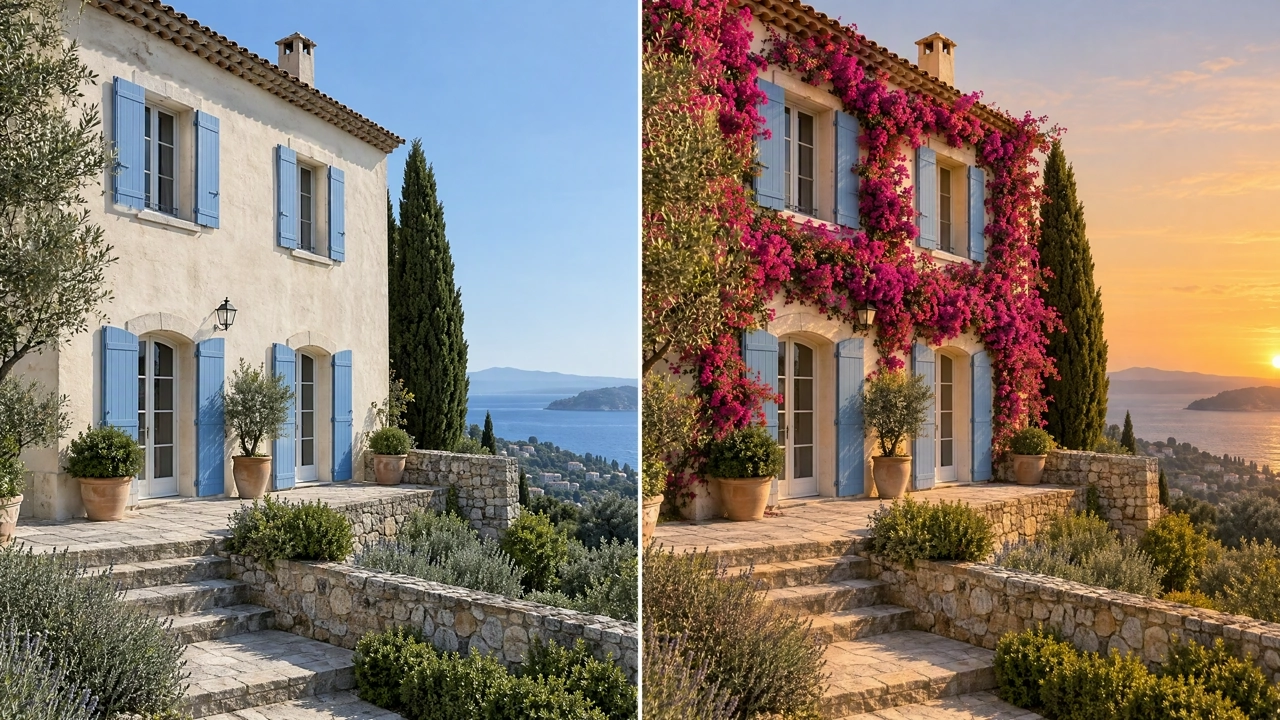
Check the result: shutters still blue, windows in the same places, only planting and warmth moved. If the house shape drifted, upload the original again and run one narrower follow-up:
Keep the exact house geometry, blue shutters, and camera from the input. Change only the pink bougainvillea density on the facade. Do not alter the roof line.
Prefer Sunburst for this kind of keep-list edit. Prefer one change per turn. If you also need a style reference, label it: “image 1 = geometry to preserve; image 2 = planting color reference only.” Restate the keep list when the result drifts. Official edit patterns—change only X, preserve Y, assign reference roles—are the same ones in OpenAI’s image prompting guide.
Try this edit prompt in GPT Image 2.6.
Troubleshooting when the frame drifts
| Problem | What to change next |
|---|---|
| Pretty but unusable | Start with Result and Framing. Name the asset and the empty side. |
| Product shape changes after a background edit | Upload the product as identity. Say “change only the setting.” |
| Headline misspells or adds a third line | Re-quote every string, count appearances, say “no other words,” then check spelling. |
| Edit rewrites the whole scene | Split Change and Keep. One change. Restate geometry and camera. |
| Draft is slow to explore | Use Flare for direction tests, then Sunburst for the keepable pass. |
| Need GIF or SVG | Use KreadoAI’s GIF / SVG paths after the still. Those are KreadoAI extensions, not native Sunburst / Flare formats. |
If two items fail at once, fix identity first, then text. Do not paste a follow-up from a different scenario.
Short tips (FAQ style)
How do I choose Sunburst vs Flare?
Use Sunburst for detailed stills and precise keep-list edits. Use Flare when speed matters more than final polish. On KreadoAI the price is the same, so the choice is the job, not the budget tier.
How should I structure a GPT Image 2.6 prompt?
Define the result, then subject, setting, light, framing, quoted text or “no text,” and exclusions. For edits, write Change and Keep as separate blocks. That order matches OpenAI’s prompting fundamentals.
How do I get on-image text closer to the brief?
Put every required line in quotes, name the side and hierarchy, say how many times it appears, and forbid extra words. Then inspect spelling and legibility. Quotes help; they do not replace a human check.
How do I use reference images without losing the product?
Number each upload and assign a role: product identity, style only, clothing, or background. Say what must move and what must stay. Without roles, the model may blend identity and style.
How do I iterate without starting over?
Pass the previous output as the next edit input. Request one change. Restate the keep list if identity or layout starts to drift. Avoid rewriting the whole scene every turn.
Where do the other model prompt guides live?
Multi-round keep lists: Seedream 5.5 prompt guide. Long briefs with many named references: MiniMax H3-Image prompt guide. Model lineup context: what's new with KreadoAI AI image models.
Where do I generate?
Open the GPT Image 2.6 AI Image Generator, or try GPT Image 2.6 for images. The trial path uses model=gpt-image-2.6. Free trial credits apply by account; generation is not unlimited.