

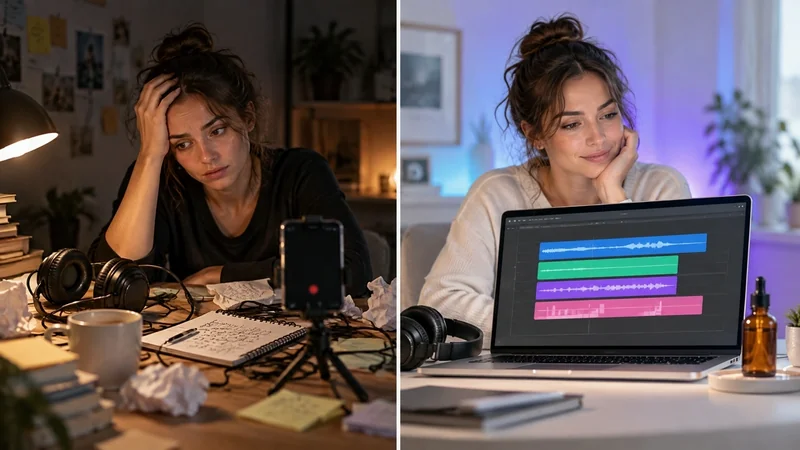
KreadoAI now has four AI audio tools: an AI Music Generator, an AI Sound Effect Generator, an AI Voice Changer, and AI Speech to Text. They cover four jobs that usually send video creators to separate apps: finding music that fits the cut, adding sound effects, re-voicing a recording, and getting a transcript or subtitle file.
Each tool is its own page with its own input. Two of them generate audio from a text prompt. The other two work on a recording you upload. You download the result and put it in your edit. Below is what each one does, what it doesn't do, and where it fits next to the rest of KreadoAI.
What's New at a Glance
| Tool | Starts from | Gives you | Good for |
|---|---|---|---|
| AI Music Generator | A text prompt | A song with vocals or an instrumental track (MP3, WAV, FLAC) | Soundtracks for ads, demos, and brand films |
| AI Sound Effect Generator | A text prompt | A short sound clip (MP3, WAV) | Transitions, impacts, ambience, product and UI sounds |
| AI Voice Changer | Your recording | The same take in another voice | A second character, a consistent series voice |
| AI Speech to Text | An audio file or MP4 | A transcript, a Chinese translation, and an SRT file | Subtitles, scripts, and localized versions |
Create Music for Your Videos with AI Music Generator
The AI music generator writes music from a description. Ask for a song, and it generates lyrics and vocals around your style, mood, tempo, and theme. Ask for background music, and you get an instrumental bed that stays out of the way of a voiceover.
For marketers, the value is fit. A stock library gives you whatever was uploaded. A prompt like "soft piano, slow, for a skincare demo, with room for a voiceover" gives you a track built for that cut. The current models are Mureka v9.5 (Prompt to Song), Lyria 3.5, and Mureka v9.5 (Background Music), and you choose MP3, WAV, or FLAC before you generate.
Here's a song from the generator, an indie-pop track with vocals and guitar:
It doesn't score your video for you. You decide where the track starts and how much the cut uses.
Add More Impact with AI Sound Effect Generator
Sound effects are the layer most AI video skips, and the one that makes a product shot feel real. The AI sound effect generator turns one described sound into a short clip: a whoosh between shots, a hit under the product name, rain on a window, a pump click on a serum bottle, a tap on a checkout button.
The menu currently lists Seed Audio v1.0 Sound Effects and ElevenLabs Sound Effects. Downloads are MP3 or WAV, and you can retry a prompt for another version.
This one is an end-card hit, the kind you'd put under a brand name in the last second of an ad:
Transform Existing Recordings with AI Voice Changer
The AI voice changer is for the take you already like. Upload a recording, pick a system voice or one of your cloned voices, and get the same words back in a different voice, with the pauses where you left them.
That's a different job from Text to Speech, which reads a script you type, and from voice cloning, which builds a reusable voice from a sample as a separate step. The voice changer changes the speaker and nothing else. It works on saved files up to five minutes per the published note, it isn't a live microphone, and it doesn't imitate named people.
An original offer recording:
The same take in a warmer voice:
Turn Audio and Video into Text with AI Speech to Text
AI speech to text transcribes an audio file or an MP4. For video, it pulls the audio track first. It detects the spoken language on its own, places a Chinese translation next to the source transcript, and exports an SRT file with timestamps. You can also copy everything, only the source, or only the translation.
The model is Gemini 3.5 Transcribe, which Google documents for more than 85 languages. That matters for teams that receive testimonials, tutorials, or creator clips in languages they don't speak.
This 35-second Japanese tutorial went in without a language setting:
The exported SRT starts with:
1 00:00:00,100 --> 00:00:05,200 今夜から使えるナイトセラムの使い方を3つの手順で説明します。
2 00:00:06,200 --> 00:00:06,800 1つ目。
3 00:00:07,800 --> 00:00:12,100 洗顔が終わったらタオルで顔の水分を軽く拭いてください。 ```
Two limits to know. It doesn't burn subtitles into the video; the SRT is a separate file and your MP4 stays as it was. And it takes uploaded files only, so video links and YouTube URLs won't work.
A More Complete Workflow for AI Video Content Creation
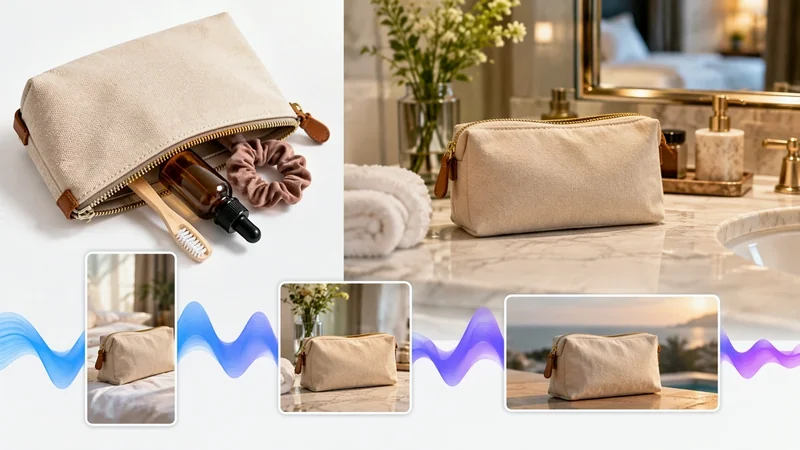
KreadoAI already handles a lot of the picture. URL to Video turns a product link into a full ad video with script and voiceover, and Text to Speech turns a script into a voiceover. The audio tools fill the gaps around that: footage you shot yourself, a recording that needs a different speaker, an edit that's missing music or effects, a clip that needs subtitles.
A typical sequence looks like this:
- Prepare the words. Transcribe an existing recording with AI Speech to Text, or start from a script.
- Get the voice. Re-voice the recording with the AI Voice Changer, or generate a new read with Text to Speech.
- Add a soundtrack with the AI Music Generator.
- Add sound effects for the cuts, the reveal, and the end card.
- Bring everything into your video editor and import the SRT for subtitles.
Each step is a separate tool, and you move the files between them yourself. Nothing here assembles the final video for you, and that's deliberate: you keep control of the mix. If you want the click-by-click version, read our step-by-step guide to KreadoAI's AI audio tools.
Explore KreadoAI's New Audio Tools
- Try AI Music Generator →
- Try AI Sound Effect Generator →
- Try AI Voice Changer →
- Try AI Speech to Text →
Frequently Asked Questions
What's new in KreadoAI?
KreadoAI added four AI audio tools: an AI Music Generator, an AI Sound Effect Generator, an AI Voice Changer, and AI Speech to Text. They cover music, sound effects, re-voicing a recording, and transcription with SRT export.
Are the four audio tools connected to each other?
No. Each tool runs on its own page. You download the output from one and upload or import it where you need it next, including your own video editor.
Can I use the audio in ads?
Yes, after you become a member. Downloaded music, sound effects, and changed voices can be used in ads and product videos, and so can exported subtitles and text.
Is there a free trial?
Yes. Each of the four tools can be tried free once.
Which languages does AI Speech to Text handle?
It uses Gemini 3.5 Transcribe, which Google documents for more than 85 languages. The tool detects the language automatically and adds a Chinese translation.
Conclusion
The four new KreadoAI audio tools give marketers and video creators the sound layer they used to source elsewhere: music written to the brief, effects for the moments that should land, a new voice on a take you already have, and transcripts with subtitles you can import. Pick the layer your video is missing and start there.