

Meta's feed placement still rejects a surprising number of uploads for falling below 1080P height on vertical video. In a July 2026 trafficking audit across twelve DTC accounts, roughly one in five winning UGC hooks arrived at 720P or lower — phone export, creator platform compression, or an AI draft saved at native resolution. Reshooting kills the hook. Regenerating burns credits. Upscaling the file you already have is often the faster fix.
This walkthrough shows how to upscale video to 1080P for ads inside KreadoAI Smart Canvas — the same board where you trim, translate, and extend clips. The AI Video Enhancer landing page covers the full 1080P–8K range; here we stay on the spec most paid-social traffickers actually need: 1080P at 30 FPS, with the right mode for UGC vs AI drafts.
If you want the product announcement context first, read the KreadoAI video quality enhancement launch. This article is the ad-trafficking playbook.
What Is Upscaling Video for Ad Delivery?
Upscaling video for ad delivery means raising the pixel dimensions of an existing file — usually from 720P or a soft 1080P export — to the minimum resolution a platform accepts, without rebuilding the edit, VO, or timing. It is not a new Image to Video generation pass. You upload the clip you plan to traffic, run enhancement, and download a sharper master that keeps the same cuts and audio.
On KreadoAI, Video Quality Enhancement handles both upscaling (adding pixels) and enhancement (recovering edge detail and compression softness) in one modal. For most Meta and TikTok UGC, 1080P output at 30 FPS is the practical target — 4K is available when you need a hero loop for a landing page, but it is overkill for a 9:16 Spark Ad that will be viewed on a phone.
Why 1080P Matters for Paid Social Ads
Platforms treat 1080P as the baseline for in-feed video, not a nice-to-have. A clip that looks acceptable in a creator inbox often shows banding, soft product edges, or blocky skin texture once Meta or TikTok re-encode it for delivery — especially if the source was 720P or heavily compressed.
Three reasons teams upscale before upload:
- Trafficking gates — Meta feed and Reels placements commonly expect at least 1080×1080 for square and 1080×1920 for vertical. Sub-1080 sources get rejected or downgraded in the auction preview.
- Creative longevity — the hook that wins this week is often reused in Advantage+ catalog extensions, retargeting, and translated markets. One 1080P master travels farther than a 720P phone export.
- AI draft polish — clips from Seedance, Kling, or Sora often ship soft at native resolution. Upscaling after generation is cheaper than burning another full render when the motion and script already work.
How to Upscale Video to 1080P with KreadoAI: Step-by-Step
These steps assume you already have a file — UGC, a screen recording, or an AI-generated draft — and need a 1080P master for upload. New to the board? Start with how to use AI Smart Canvas for ad creatives.
Step 1 — Put your video on Smart Canvas
Open Smart Canvas and upload the clip, or open an AI video you already generated and enter Smart Canvas from Video Quality Enhance. UGC unboxings, talking-head hooks, and 16:9 product loops all work. Keep the original file — enhancement creates a new output; it does not overwrite your source.
Expected result: the clip appears on the board with its current resolution visible in the asset panel (often 720P or 1080P for phone exports).
Step 2 — Open Upscale and set 1080P
Select the clip and click Upscale (Video Quality Enhance). In the modal:
- Mode: Standard for clean studio footage; AI Pro for compressed phone UGC or soft AI drafts (see the mode table below).
- Output clarity: 1080P for Meta, TikTok, and Instagram trafficking.
- Frame rate: 30 FPS unless the source is 24 FPS cinematic — match the source when possible to avoid judder.
Submit generation. Processing time depends on length; an 8–15 second hook is usually ready before you finish writing ad copy.
Expected result: a second asset on the board at 1080P with timing and audio intact.
Step 3 — Preview, then download the traffickable file
Play the enhanced clip full-screen on the canvas. Check product label legibility, skin texture on UGC, and motion smoothness on fast hand movements. If the hook still looks soft, switch to AI Pro and rerun once — do not chain two Standard passes.
Click Download and upload the file to Ads Manager or TikTok Ads Manager. If you plan to translate the ad for another market, translate first, then enhance the final language version — not twice.
Open Video Quality Enhancement →
Meta, TikTok, and YouTube Video Specs for Ads
Use this table when deciding whether you need 1080P upscaling before upload. Specs change; verify against official docs before a major launch.
| Platform | Common placement | Minimum resolution (typical) | Aspect ratio | Notes |
|---|---|---|---|---|
| Meta (Feed) | Facebook / Instagram Feed | 1080 × 1080 (1:1) or 1080 × 1350 (4:5) | 1:1, 4:5, 9:16 | Vertical Reels/Stories expect 1080 × 1920 |
| Meta (Reels / Stories) | Instagram Reels, Stories | 1080 × 1920 | 9:16 | 720P sources often fail preview QA |
| TikTok | In-feed Spark / non-Spark | 1080 × 1920 recommended | 9:16 | 720 × 1280 may upload but looks soft in FYP |
| YouTube | In-stream skippable | 1920 × 1080 | 16:9 | 1080P is standard; 4K optional for TV-heavy campaigns |
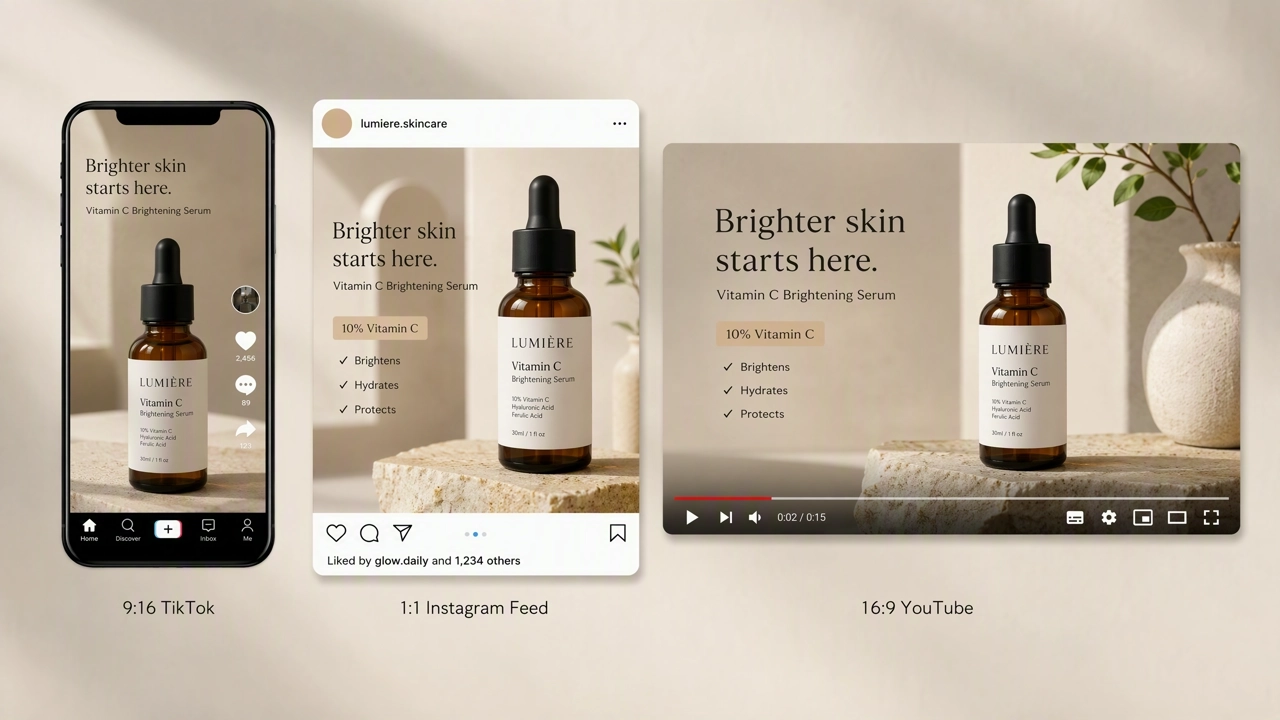
 When one hook runs across TikTok and Meta, upscale to 1080 × 1920 first, then let each platform crop — starting from 720 × 1280 gives the encoders less detail to work with. For platform-specific creative workflows, see how to make TikTok ads with AI and how to create Instagram ad creatives with AI.
Standard vs AI Pro: Which Mode for Your Footage
| Source type | Recommended mode | Target output | Why |
|---|---|---|---|
| Clean studio / screen capture | Standard | 1080P @ 30 FPS | Already sharp; lighter pass saves credits |
| Phone UGC / WhatsApp export | AI Pro | 1080P @ 30 FPS | Recovers compression blocks and noise |
| AI draft (Seedance, Kling, Sora) | AI Pro | 1080P or 2K | Reduces grain and soft edges without regen |
| Landing-page hero loop | AI Pro | 2K or 4K | Large-surface playback needs extra detail |
Standard is not "worse" — it is the right tool when the source is already decent. AI Pro is the heavier model; use it when you can see macroblocking in skin or product edges before upload.
Before/After Examples — What 1080P Upscaling Fixes
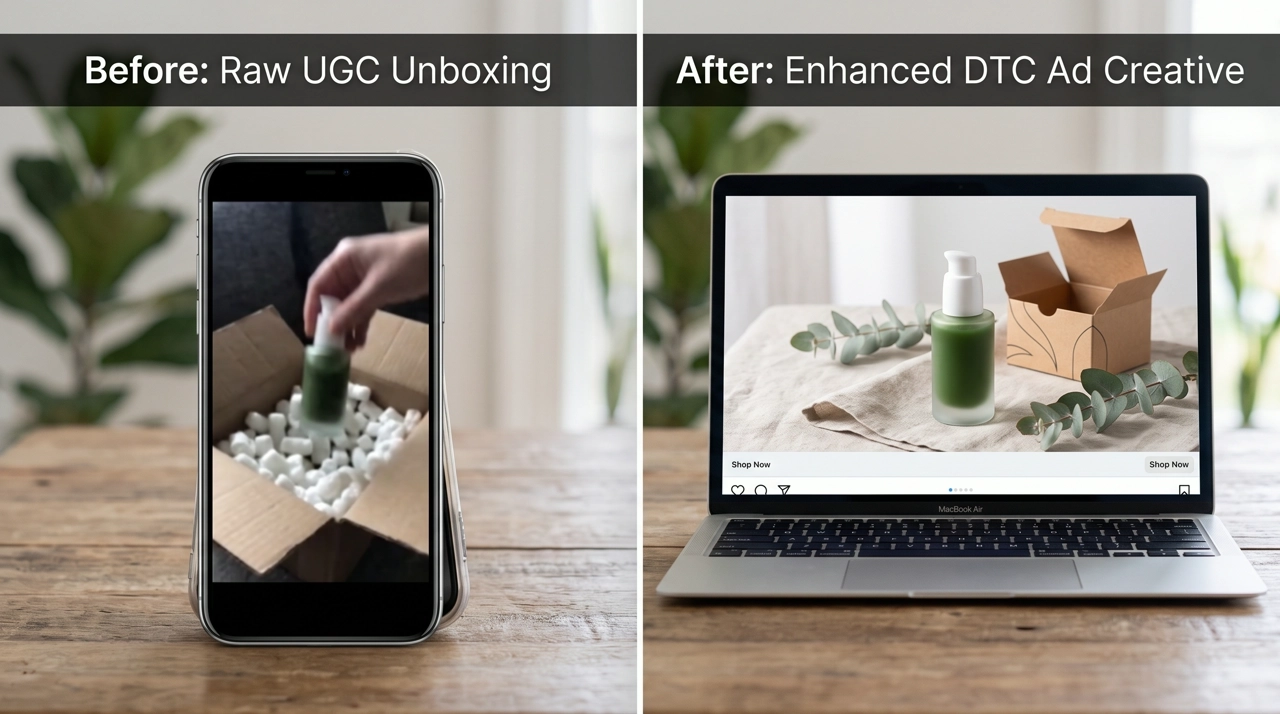
These examples show source footage teams commonly upscale — not regenerated hooks.
Example A — 720P UGC skincare unboxing (9:16)
Source: creator phone export at 720 × 1280, window light, hands in frame. Problem: soft label text and visible compression on skin. Fix: AI Pro → 1080 × 1920 @ 30 FPS. Outcome: readable serum name in Ads Manager preview without reshooting the creator.
Example B — AI draft hero loop (16:9)
Source: Image to Video product orbit at 720P, slight grain. Problem: acceptable in a storyboard, too soft for Meta 16:9 feed. Fix: AI Pro → 1920 × 1080. Outcome: sharper case edges and reflection detail on a dark studio surface.

Enhance your trafficked file →
Pro Tips for Better 1080P Ad Results
- Upscale once on the final cut — trim hooks and add end cards before enhancement so you do not pay twice on the same seconds.
- Match frame rate to source — forcing 60 FPS on a 24 FPS UGC clip creates interpolation artifacts that look worse than a clean 30 FPS upscale.
- Keep audio from the source — Video Quality Enhancement preserves timing and audio; do not strip VO before upload thinking you need a "clean" file.
- Batch by campaign — put all variants for one ad set on the same Smart Canvas board so output specs stay consistent across hooks A/B/C.
- Pair with generation, not instead of it — upscale fixes resolution; it does not fix a wrong product angle. Regenerate when composition fails, enhance when motion and script already work.
Common Mistakes to Avoid
Pushing 480P phone footage to 4K — extreme upscaling invents texture. Stop at 1080P for social; reserve 4K for landing-page heroes where the player is full width.
Running enhancement twice on the same clip — the second pass can oversharpen skin and product edges. If Standard fails, switch to AI Pro once; do not stack passes.
Enhancing before translation — lip-sync and on-screen text targets change after video translation. Enhance the language version you will traffic.
Uploading the wrong aspect ratio after upscale — a 16:9 1080P file forced into 9:16 with letterboxing fails Reels QA. Upscale in the ratio you will upload.
Ignoring platform re-encoding — even a clean 1080P master gets compressed again. Start from the highest practical source (AI Pro for UGC) so the second compression has detail left to work with.
FAQ
Can I upscale video to 1080P for free on KreadoAI?
KreadoAI offers free credits for new accounts. Video Quality Enhancement consumes credits based on length and mode; check current pricing on the site before batch-processing a full UGC library. Pricing as of September 2026.
Does upscaling change my edit or voiceover?
No. Enhancement keeps timing and audio from the source file. Cuts, music, and VO stay aligned — you are downloading a higher-resolution version of the same clip.
What is the difference between Standard and AI Pro for ads?
Standard is a lighter pass for footage that is already fairly clean. AI Pro uses a heavier model for compressed phone UGC and soft AI-generated drafts. For most creator phone exports, AI Pro is the safer default before Meta upload.
Should I upscale before or after generating with Seedance or Kling?
Generate first at the model's native resolution, review motion and script, then upscale the approved take. Upscaling is a post step — not a substitute for a bad prompt or wrong product reference.
Is 1080P enough for TikTok Spark Ads?
Yes for most in-feed Spark placements. TikTok recommends 1080 × 1920 for 9:16 video. Starting from 720P and upscaling to 1080P is a common workflow when creators deliver phone exports.
Can one 1080P file work on Meta and TikTok?
Often yes if you export 9:16 at 1080 × 1920 — both platforms accept vertical HD. Square and 16:9 placements need separate crops or separate masters; upscaling does not change aspect ratio.
When should I use 4K instead of 1080P for ads?
Use 4K for landing-page hero loops, YouTube TV-heavy campaigns, or large-format display. Paid-social mobile feeds rarely benefit from 4K file size; 1080P is the practical default.
Does KreadoAI upscale replace Topaz or dedicated upscalers?
For ad teams already on Smart Canvas, in-board enhancement removes a round trip to a standalone upscaler — especially when translation or trim steps follow. Dedicated tools may still win for long-form cinema footage outside ad lengths.
Ready to traffic a hook that arrived soft? Open Smart Canvas, upload the clip, and run Video Quality Enhancement at 1080P. The winning creative is often the one you already have — just not at the resolution the platform expects.