

The creator delivered a winning hook — and a 720 × 1280 export straight from her camera roll. Meta preview shows blocky skin, a soft product label, and a rejection note about minimum resolution. You are not reshooting tomorrow. You need the same take at 1080P before the ad set goes live.
That is the everyday use case for an ai video enhancer for ugc ads on KreadoAI: keep the creator's motion and voice, lift phone footage to platform-ready clarity, and upload from Smart Canvas without a second shoot.
This guide is UGC-only — not AI-generated drafts (see upscale AI generated video for ads) and not generic platform specs alone (see how to upscale video to 1080P for ads). The AI Video Enhancer product page covers the full feature set.
What Is an AI Video Enhancer for UGC Ads?
An AI video enhancer for UGC ads improves creator-shot phone footage — unboxings, talking-head hooks, get-ready-with-me clips — so it meets paid-social resolution and clarity expectations without reshooting. You upload the file you received, run Video Quality Enhancement, and download a sharper master with the same timing and audio.
On KreadoAI, that means AI Pro mode on Smart Canvas: the heavier pass built for compressed phone exports and WhatsApp-forwarded creator files. Standard mode is for already-clean studio footage; UGC almost always needs AI Pro before Meta or TikTok upload.
Why Enhance UGC Before Paid Social Upload
Creator footage fails trafficking for predictable reasons — not because the hook is wrong.
- Resolution — many creators export 720P or send a platform-compressed link. Meta Reels and TikTok in-feed placements expect 1080 × 1920 for vertical video.
- Compression artifacts — double compression from creator apps plus ad-platform re-encode shows as macroblocking on skin and muddy product text.
- Inconsistent specs across hooks — Hook A from an iPhone, Hook B from a creator platform download. Enhancement on one Smart Canvas board normalizes output before A/B upload.
- Speed — a 10-second AI Pro pass beats rebooking a creator for one sharper export.
How to Enhance UGC for Ads with KreadoAI: Step-by-Step
Step 1 — Import the creator file as received
Open Smart Canvas and upload the original — not a screen recording of a screen recording. Accept .mp4 and .mov from camera roll, creator platforms, or agency Dropbox links. Keep the source; enhancement adds a new asset.
Check the asset panel for native resolution. If it reads 720 × 1280 or lower, plan for 1080 × 1920 output for 9:16 trafficking.
Expected result: clip on the board at native phone resolution.
Step 2 — Run Video Quality Enhancement (AI Pro, 1080P)
Select the clip → Upscale → Video Quality Enhance. For UGC:
- Mode: AI Pro — recovers compression blocks phone Standard mode misses.
- Output: 1080P for Meta and TikTok vertical; match 16:9 only if you are trafficking landscape.
- Frame rate: match source (usually 30 FPS on phone).
Submit and wait — an 8–15 second hook typically finishes while you write ad copy.
Expected result: 1080P asset, same duration and audio.
Step 3 — QA skin, labels, and motion, then download
Full-screen the enhanced clip. UGC-specific checks:
- Product label readable at phone size?
- Skin texture natural — not plastic from double enhancement?
- Hand motion smooth — no interpolation judder?
Download and upload to Ads Manager or TikTok Ads Manager. For multi-language campaigns, translate first, then enhance the final language file once.
UGC vs Other Sources — Which Mode to Use
| Source | Typical issue | Mode | Target | Notes |
|---|---|---|---|---|
| iPhone / Android camera roll | 720P, mild compression | AI Pro | 1080P @ 30 FPS | Default UGC path |
| Creator platform download | Heavy compression | AI Pro | 1080P @ 30 FPS | Always use original file |
| WhatsApp / Slack forward | Extra compression | AI Pro | 1080P @ 30 FPS | Ask creator for Drive link if possible |
| Clean studio UGC (rare) | Already 1080P sharp | Standard | 1080P | Only when preview already passes |
Before/After — What Enhancement Fixes on UGC
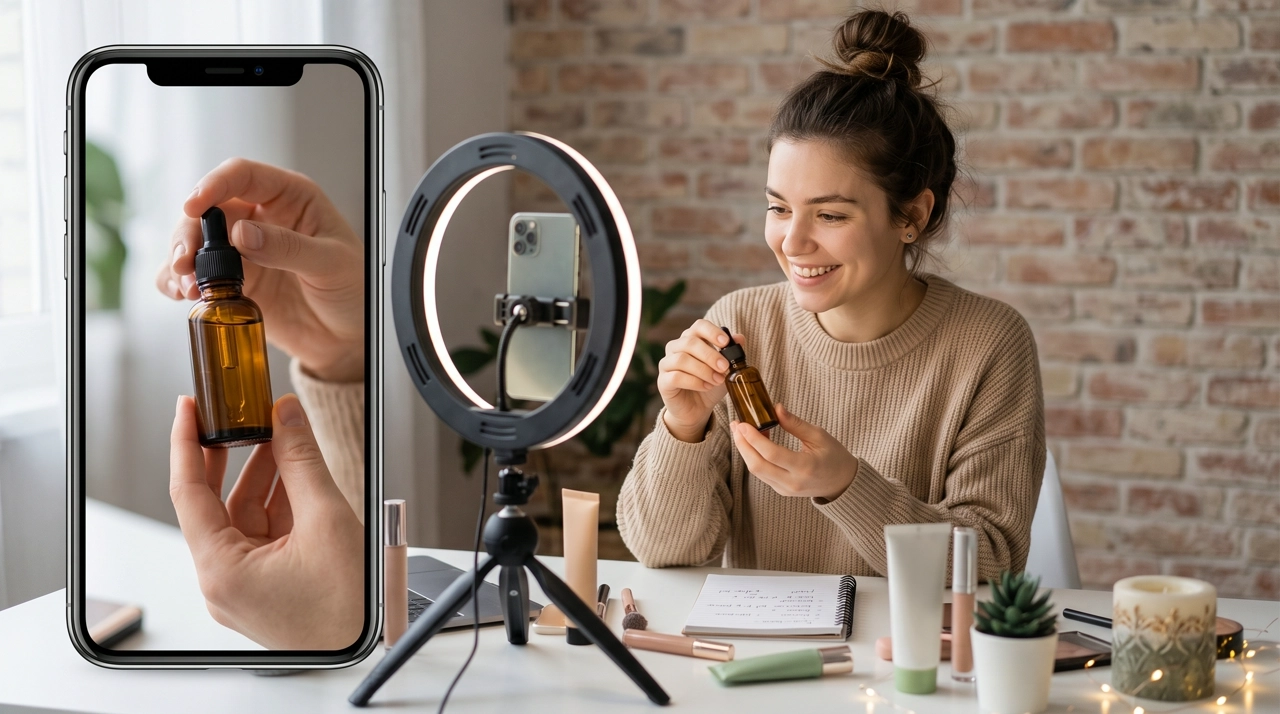
Example A — Skincare unboxing (9:16, 720P phone export)
Source: creator window-light unboxing, hands in frame, 720 × 1280. Issue: soft serum label, visible compression on skin. Fix: AI Pro → 1080 × 1920. Outcome: readable product name in Ads Manager — same creator take.
Example B — Talking-head product hook (9:16)
Source: creator talking to camera with product hold, platform-compressed download. Issue: acceptable in inbox, fails Reels QA. Fix: AI Pro → 1080P. Outcome: sharper face and product edge without rebooking the creator.
Platform minimums and aspect-ratio rules: how to upscale video to 1080P for ads. TikTok workflow: how to make TikTok ads with AI.
Pro Tips for UGC Enhancement
- Ask creators for original camera-roll files — platform downloads add a compression generation you cannot undo in brief.
- Enhance once on the final cut — trim to ad length before AI Pro so you do not pay twice.
- Batch hooks from one creator on the same board — consistent 1080P output across A/B/C variants.
- Do not upscale 480P to 4K — stop at 1080P for feed; extreme upscaling invents skin texture.
- Pair with Spark Ad rights — enhancement does not replace usage rights; fix pixels after legal clears the creator.
Common Mistakes to Avoid
Enhancing a screen recording instead of the source file — you are upscaling compression twice.
Using Standard mode on phone UGC — the lighter pass saves credits but often leaves blocky skin in Meta preview. AI Pro is the default for creator phone exports.
Enhancing before final trim — lock hook length and end card first.
Ignoring aspect ratio — a 16:9 enhanced file letterboxed into 9:16 still fails Reels QA. Enhance at the ratio you will upload.
Rebooking creators for resolution alone — if motion and script work, enhancement is faster and preserves the authentic take brands buy UGC for.
FAQ
Can I use an AI video enhancer for UGC ads on KreadoAI for free?
New accounts include free credits. Enhancement consumes credits by length and mode. Pricing as of September 2026.
Does enhancement change the creator's voice or lip sync?
No — timing and audio stay aligned. You are downloading a higher-resolution version of the same take.
What is the difference between AI Pro and Standard for UGC?
Standard suits fairly clean footage. AI Pro uses a heavier model for compressed phone exports — the typical UGC case.
Should I enhance before or after adding captions?
Burn-in captions before enhancement if they are part of the final ad. If captions are added in Ads Manager, enhance the clean export first.
Is 1080P enough for Meta UGC ads?
Yes for most Reels and Stories placements at 9:16. See the spec table in the 1080P ads guide.
Can enhanced UGC run as Spark Ads on TikTok?
Yes — enhancement only changes resolution and clarity, not usage rights. Confirm Spark authorization separately.
How is UGC enhancement different from upscaling AI-generated video?
Same tool, different source. UGC carries phone compression; AI drafts carry model grain. See upscale AI generated video for ads for that path.
Will Meta re-compress my enhanced file again?
Yes — platforms always re-encode. Starting from AI Pro 1080P gives the second compression more detail to work with.
Got a creator hook that wins in review but fails in preview? Upload the original, run AI Pro at 1080P on Smart Canvas, and traffic the sharper file — that is what an ai video enhancer for ugc ads is for.