

KreadoAI has added AI image layer decomposition to Smart Canvas. The feature takes one flat still and turns it into a stack of editable layers — up to 16 per image — using Seedream 5.0 Pro. You can move, scale, and recompose those layers on the canvas, then export transparent PNGs or a PSD.
That matters for anyone working with campaign stills. Most AI images, and many finished posters, arrive as a single flattened file. Changing the headline, swapping the product, or shifting the talent usually means generating the picture again. Layer decomposition is meant to sit between “leave it as a JPEG” and “start over in Photoshop.”
What’s new
This is not a prompt-writing workflow. If you need generation syntax, use the Seedream 5.0 Pro prompt guide. Layer decomposition starts from an image you already have.
The split runs on Seedream 5.0 Pro, ByteDance’s July 8, 2026 flagship image model in the same family documented on Seedream 5.0. The model identifies independent elements — people, products, ornaments, background — and returns each as its own layer. The cap is 16 layers per image. Simple scenes often return fewer, which is usually the better design file.
Outputs include transparent PNGs and a layered PSD, so the result can leave KreadoAI and still behave like a design document. Several images can be processed in one session; each image lands on its own board so SKUs do not merge into one stack. Output size can be Auto, 1K, 1.5K, or 2K.
If the workspace itself is new, AI Smart Canvas for ad creatives covers the board. Net-new ads from a product URL still belong in the ad creative generator. This update is for a still that already exists.
How the results look
We ran the new action on campaign stills that already had a clear subject, a product, and a backdrop. The brief was the same in each case: keep the content, make the file editable.
From one flat poster to a layer stack
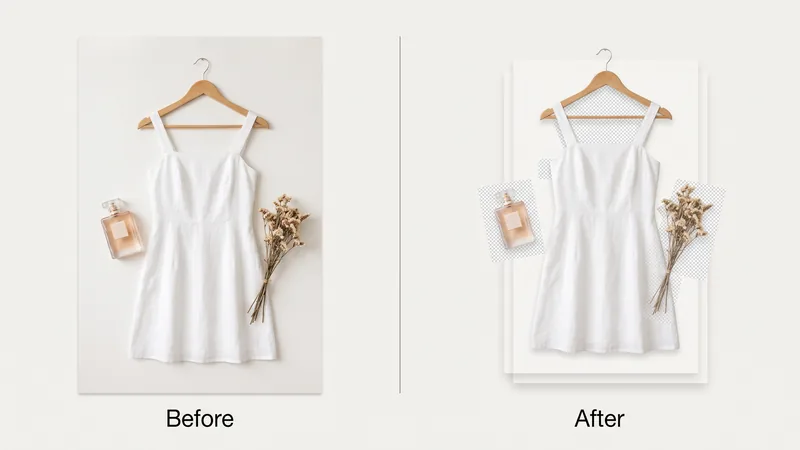
The first result is the split itself. A flattened product poster comes back as separate pieces — talent, bottle, type, backdrop. The background is usually inpainted where the subject used to sit, so you get a full plate rather than a hole. That is the difference between a JPEG you can only regenerate and a file you can design with.
Recomposing the same assets on canvas
Once the layers are on the board, secondary creation starts immediately. The bottle can move. The talent can scale. A taller backdrop can turn a 1:1 feed still into a 9:16 story frame. An offer badge can sit on its own layer instead of being burned into the original crop.
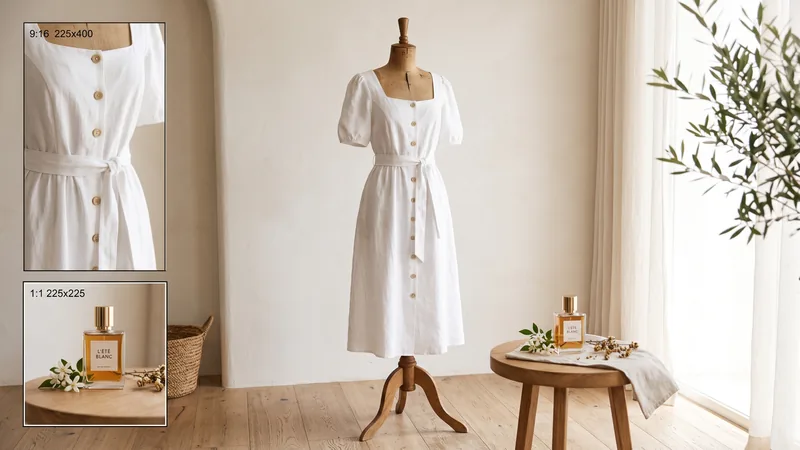
A clean five-layer split is often more useful than a noisy sixteen. Sixteen is the ceiling, not a quality score. Hair, glass, and a missed logo may still need a short cleanup. The feature removes the first hour of extraction; it does not replace the last pass of taste.
If the composition itself is wrong, generate first and split second. For Seedream-native ad generation rather than splitting an existing still, how to use Seedream for ads is the sibling workflow.
Where it fits in production
Revision rounds. A request such as “same scene, product 20% larger” becomes a canvas adjustment instead of a new generate.
Format reuse. One hero still can become a 1:1 feed, a 9:16 story, and a banner once objects are no longer locked to the original crop.
Designer handoff. Transparent PNGs are enough for Figma or a quick media comp. A PSD is the better package when Photoshop work continues outside KreadoAI. Match output size to the destination: 1K for an internal check, 1.5K for most social stills, 2K for a large PDP or a file heading to design.
The working path is short. Open Smart Canvas, upload the image, run layer decomposition, review the stack, then export. Feed a high-contrast source when you can. Split the master before you crop it. Keep one board per SKU in a batch.
FAQ
What is AI image layer decomposition?
It is a model pass that turns one flat image into multiple editable layers — typically subject, product, decor, and background. On KreadoAI, Seedream 5.0 Pro runs the split and Smart Canvas holds the stack for editing and export.
How many layers can one image produce?
Up to 16 independent layers per image. Simple scenes return fewer, which is usually better. Sixteen is the cap, not a target.
Do I still need to cut objects out by hand?
Not as the first step. The model extracts elements and places them on the canvas. You may still refine hair, glass, or a missed logo. You should not start with a full manual extract.
Can I download PSD and transparent PNGs?
Yes. Download all layers as transparent PNGs, or take a layered PSD for Photoshop. Use PNG for quick comps and PSD when a designer will keep the file.
Can I batch several images?
Yes. Run decomposition on multiple images in one session. Each image gets its own board so SKUs stay separate.
Which output size should I pick — Auto, 1K, 1.5K, or 2K?
Auto follows the source. 1K is for drafts. 1.5K covers most social stills. 2K is for large placements and PSD handoff. Match the size to the destination, not the highest label.
Is this the same as writing Seedream 5.0 Pro prompts?
No. Prompting generates or edits pixels from instructions. Layer decomposition takes an existing image and turns it into a stack. Use the prompt guide for generation; use this feature when you already have a still to take apart.
From a flat image to fully editable creative assets — in one click. The update is most useful on a still you already trust. Open Smart Canvas, upload the poster you were about to rebuild from scratch, and split it before another retouch round begins.