

By the end of this Seedance 2.0 tutorial you will have one clip: either from a written shot, or from a still plus a motion line. The path is the same screen. You choose Seedance 2.0, describe one action, set the ratio and the length, then generate.
The controls below follow the Seedance 2.0 for Ads page on KreadoAI, checked against that page on 22 October 2026. If a switch on your screen has a different label, follow the screen.
What Seedance 2.0 Does Well for Ad Creative
Seedance 2.0 is the model you open when the clip has to stay tied to something you already have, and the shot is still short.
It takes a text prompt, or a starting image, and it can also take extra references: a pack shot, a short motion clip, or an audio bed. The ads page describes those as image, video, and audio references bound to the same job. That is the useful part for a product that must not change shape between takes.
Native audio can ride in the same pass. Ask for a sound the picture can support, such as a motor that stops, or a fan that stays quiet. Do not ask for a conversation with several speakers inside one short clip.
Length on this model runs up to 15 seconds. A single action with one camera move fits. A full story with a new room in the middle does not.
Ratios called out for paid placements are 9:16, 16:9, and 1:1. Pick the frame before you write the shot. A hallway pass wants 9:16. A living-room wide shot wants 16:9.
What Seedance 2.0 Can't Do
It will not hold a 30-second single take. That job sits on Seedance 2.5. The Seedance 2.5 prompt guide is the writing manual for timestamped 15–30 second scripts, up to 50 references, and native 4K on that version. Do not paste a 30-second beat sheet into Seedance 2.0 and expect the extra seconds to appear.
It will not invent a finished media plan. You still choose the ratio. The file you download is the clip, not a set of resized placements.
It will not keep a product honest if the prompt fights the picture. "Make it a different bottle, and also orbit, and also change the room" is three jobs. The preview will pick one and smear the others.
On-screen words are a common miss. Leave headlines for the editor. Write the shot so the top or bottom of the frame stays clear if you need type later.
How to Use Seedance 2.0 with KreadoAI: Step-by-Step
Step 1 — Select Seedance 2.0
Open Seedance 2.0 for Ads and start the generator. Choose Image-to-Video or Text-to-Video. In the model list, select Seedance 2.0.
Text-to-video is the first run if you do not have a still. Leave the image slot empty. Image-to-video is the same model with a start frame uploaded. The Image to Video page is that image path when you already know the frame.
If another model is selected, stop. Kling and Veo do not use this duration or this reference setup.
Step 2 — Write one shot, then set ratio and length
Write four things: what is in frame, the single action, where it happens, and how the camera moves.
A usable line looks like this:
Subject + one action + place + camera + one light note
Skip stacks of praise words. "Cinematic, ultra realistic, 8k" does not tell the model what moves.
Set the ratio to the placement. Set the length to the action, not to the maximum. Eight seconds is enough for a nozzle to travel a rug and stop. Fifteen seconds is the ceiling on Seedance 2.0, not a target. Resolution options appear on the generator. Read them there. The clips in this article were rendered at 720P for 8 seconds on 22 October 2026.
Turn audio on only when the prompt names a sound the picture can make. A motor hum that fades is checkable. A soundtrack is not.
If you upload a still, describe the change, not the picture. "A white vacuum in a hall" repeats the frame. "The nozzle glides once along the rug, then stops" is the job.
Optional references come after the first successful clip. Bind one image to the product, one short clip to the camera path, or one audio file to the rhythm. The ads page is where that reference workflow is spelled out. This tutorial finishes without them.
Step 3 — Generate, watch once, then change one line
Click Generate. The page does not publish a fixed wait time, so do not plan a live review around a number of seconds.
Watch the preview next to the prompt. Check three things: the action happened once, the camera move matches the sentence, and the subject did not change into a different object.
If one of those fails, change that line and generate again. Do not add a second room to "fix" a warp.
Download when the preview matches the shot.
Real Ad Creative Examples from Seedance 2.0
These two clips were generated on KreadoAI with Seedance 2.0 on 22 October 2026. Each clip starts from the still beside it, so the product in the video is the product in the picture. 8 seconds, 720P, audio on. A later run can differ. Neither clip is a centered product push-in.
Hallway: the nozzle travels once
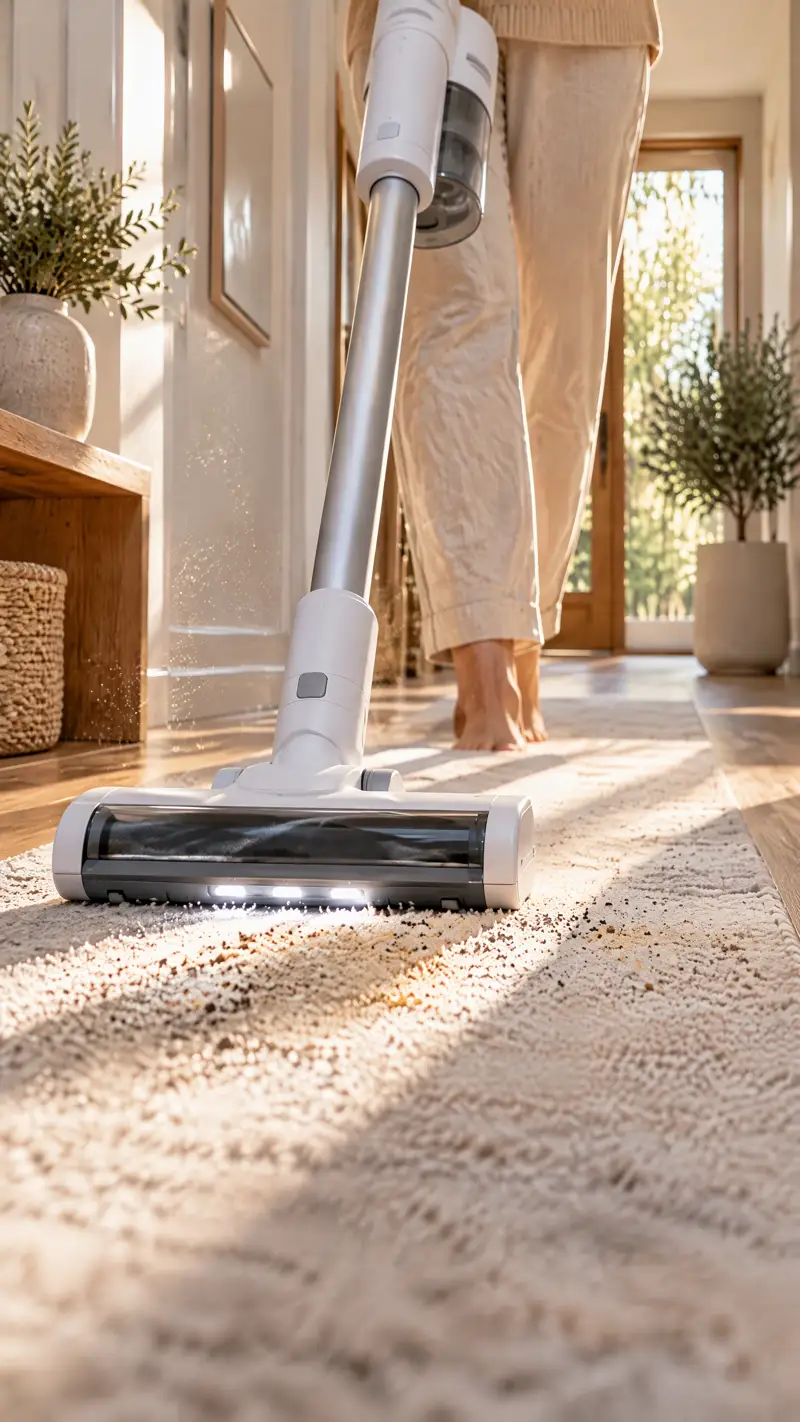
The still is the start frame: a white and silver cordless stick vacuum with an LED floor head, in a sunlit hallway.
Prompt used:
Keep this white and silver cordless stick vacuum, with the LED floor head already in frame. The floor head glides forward once along the rug, the LEDs stay on, and a thin line of dust lifts into the sunlight, then the head stops. Do not change the vacuum color or shape. Camera stays low beside the head and moves with it. Sound: a short quiet motor hum that fades when the head stops.
Why this shot: the clip has to keep the same vacuum, then show the head actually cleaning. 9:16 suits a vertical placement. If the head turns black, or never moves, the reference failed. Repeat the color and "glides once," and remove any second camera instruction.
Living room: the picture stays sharp
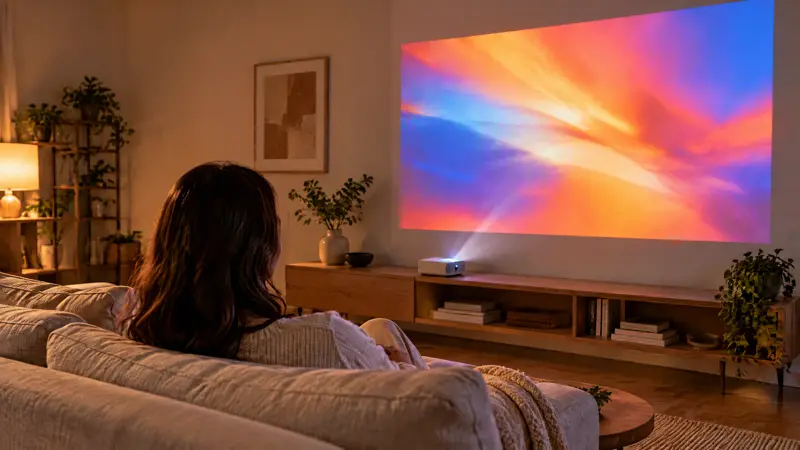
The still is the start frame: the same small white projector, a visible beam, and a large sunset already in focus on the wall.
Prompt used:
Keep this small white portable projector on the oak console. A bright beam stays visible from the lens to the wall. The large sunset on the wall is a sharp projected picture: the clouds slowly drift so it is clearly playing, and the rectangle stays crisp and in focus. Do not turn the picture into a blur. Camera stays locked and wide. The person does not stand. Sound: a quiet projector fan.
Why this shot: the product value is a large, sharp picture that keeps playing, with the beam still visible. A color smear on a blank wall does not show that. 16:9 holds the room. If the sunset goes soft, or the projector changes shape, put "crisp and in focus" and "do not redesign the projector" back in.
Still images for a campaign, including catalog frames that must match a product photo, belong on an image model. Seedream for Ads is that path. This page stays on video.
When the brief is a shoppable ecommerce ad with offer, ratio batching, and a trafficking handoff, use the existing walkthrough: How to use Seedance 2.0 for ecommerce video ads. If the query you started from was the Doubao app rather than this generator, the steps live in How to use Doubao AI video generator for ad creatives.
Frequently Asked Questions
How do I use Seedance 2.0 to generate a video?
Open Seedance 2.0 for Ads, select Seedance 2.0, write one subject and one action, set ratio and a length up to 15 seconds, then generate. Preview the clip and download it when the action matches the prompt.
Is there a Seedance 2.0 tutorial for text and for an image?
Yes. Text-to-video leaves the image slot empty. Image-to-video uses the same model after you upload a start frame, and the prompt should describe motion rather than repeat the still.
How long can a Seedance 2.0 video be?
Up to 15 seconds on this version. Use a shorter length when the action is short. A 30-second single pass is a Seedance 2.5 job.
Is Seedance 2.0 good for ecommerce ads?
It is a fit when the ad is a short clip that must stay tied to a product image, a motion reference, or a simple sound, in 9:16, 16:9, or 1:1. It is a poor fit when you need a 30-second scripted film in one generate.
How does Seedance 2.0 compare to Kling or Veo for ad creative?
Seedance 2.0 is the reference-and-audio short clip: product lock, a camera path, sound that belongs to the picture, up to 15 seconds. Veo is the page to open for a photoreal single scene with its own length limit. Kling is the page to open when the shot is a wider cinematic move. Pick from the model list for that brief. Do not expect one prompt to behave the same on all three.
Should I start on Seedance 2.0 or Seedance 2.5?
Start on 2.0 for this tutorial: one shot, up to 15 seconds, text or a still. Move to 2.5 when the script needs second-by-second beats across a longer take. The prompt method for that version is separate.
What usually goes wrong on the first generate?
The prompt names two actions, or the camera move contradicts the action. The product then bends or the room changes. Cut the prompt back to one verb and one camera line, then generate again.
Generate the first Seedance 2.0 clip
Select Seedance 2.0. Write one action. Set the ratio before you ask for more length. Watch the preview once, and change only the line that failed.