

Seedream 5.0 Pro shifts the workflow from "regenerate until lucky" to "edit like a design file." Released by ByteDance's Seed team on July 8, 2026, the model (doubao-seedream-5-0-pro on Volcano Engine) unifies generation and pixel-level editing — region select, sketch input, anchor targeting, layer separation, and multi-image fusion up to 10 references.
On KreadoAI, Seedream 5.0 Pro targets production teams who need brand-grade posters, ecommerce local edits, dense infographics, and native multilingual in-image text — not one-off pretty frames. This guide gives you prompt structures that match how the model actually reasons: spatial grounding first, change description second, constraints last.
What Makes Seedream 5.0 Pro Different
Compared to earlier Seedream versions and pure output-only generators, five capabilities change how you write prompts:
- Interactive precision editing — point, lasso, box, or sketch selections translate into local edit instructions without redrawing the full frame.
- Layer separation — split a finished image into background + element layers with transparent PNG exports for downstream layout.
- Native 2K output — production resolution with optional upscale paths; describe material detail knowing the model renders fine texture.
- Multilingual in-image text — 15 languages including Arabic (RTL), Japanese, Korean, Spanish, and French; spell text in quotes and name the script explicitly.
- Multi-image fusion — up to 10 reference images; first reference is free on API tiers — lock product, style, and scene separately.
For catalog batch mood boards without region editing, Seedream for Ads and the How to Use Seedream for Ads guide cover the 5.0/4.5 batch path. This article focuses on 5.0 Pro's editing and prompt depth.
The SPACE Framework for Text-to-Image
For fresh generation on KreadoAI, structure prompts with SPACE — five elements the model's reasoning pass resolves before rendering:
| Element | What to write | Weak example | Strong example |
|---|---|---|---|
| Subject | Who/what, physical detail | "a product" | "amber glass serum dropper bottle, 30ml, matte gold cap" |
| Palette & style | Color grade, aesthetic, mood | "professional look" | "warm ivory and soft gold palette, premium beauty editorial" |
| Arrangement | Composition, spatial layout | "nice layout" | "bottle centered on marble slab, negative space top 20% for headline" |
| Camera & light | Angle, DOF, lighting setup | "good lighting" | "45° hero angle, soft window light from left, subtle rim on glass" |
| Extra | Materials, textures, quoted text | "add text" | "Headline text \"Summer Glow\" in English, top center, sans-serif" |
Vague adjectives ("beautiful," "high-quality") underperform concrete visual instructions every time. If you need copy burned into frame at small sizes, route ultra-dense offers to GPT Image 2 for Ads; use Seedream 5.0 Pro when you need editability and multilingual layout after the first pass.
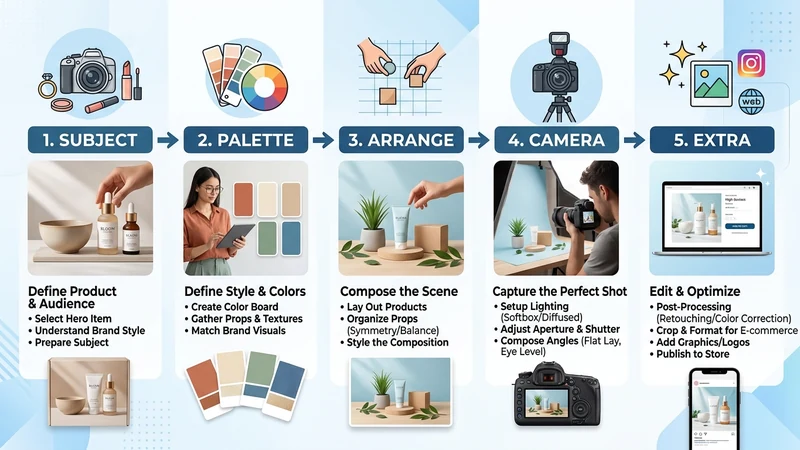
SPACE: Subject → Palette → Arrangement → Camera → Extra. Cover all five before hitting Generate.
Prompting Interactive Edits
Seedream 5.0 Pro treats the first output as a draft. Prompt structure changes by edit mode.
Region editing (point / lasso / box)
Name the target region first, then the change. Do not describe areas you want preserved — unmentioned regions stay stable by default.
Template:
Change [target element + position] to [new state] — keep everything else unchanged.
Example (ecommerce jacket swap):
Change the jacket on the figure standing on the left to dark navy wool with visible weave — keep face, background, and lighting unchanged.
On KreadoAI, pair the prompt with point-select or circle-select on the target before generating.
Sketch editing
The sketch supplies shape and position; the prompt supplies material and style.
Template:
In the sketched area, render [object/material] matching [style reference]. Blend edges naturally with surrounding scene.
Example:
In the sketched vase outline on the table, render a matte white ceramic vase with soft shadow — match the warm interior lighting of the room.
Anchor editing
Works best when objects sit in clear rows, grids, or columns. Name position explicitly.
Change only the third bottle from the left to rose-gold metallic finish — do not alter other bottles or the shelf.
Multi-image fusion (up to 10 refs)
Assign each reference a role in the prompt:
Compose a campaign poster: product shape and label from @image1, marble surface and lighting mood from @image2, typography style reference from @image3. Headline "New Season" in English, top 15% clear.
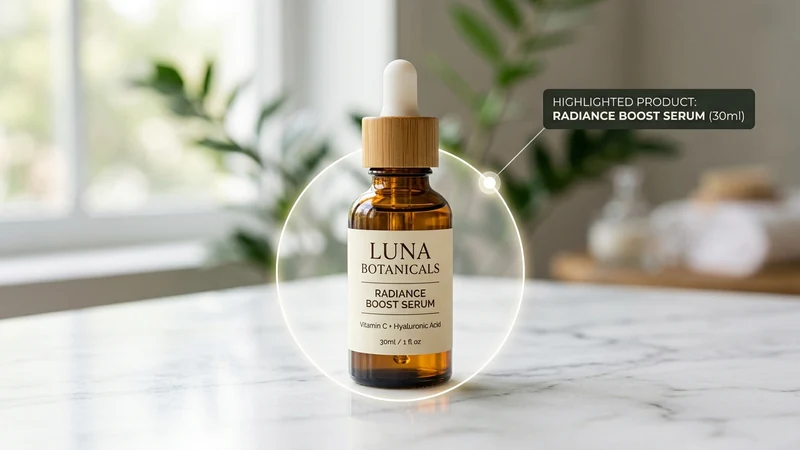
Region edit: target first, change second — surrounding pixels stay locked.
Layer Separation Prompts
Ask for separable layers in plain language — layer count follows the prompt, not a manual slider.
Templates:
Separate this image into layers: background, main product, foreground props. Export each element with transparent background.
Split the poster into independent layers — headline text, product hero, decorative frame, background gradient — PNG with alpha per layer.
Use case: ship a product layer to Ad Creative Generator multi-size export without regenerating the full scene.
In-Image Text and Multilingual Prompts
Seedream 5.0 Pro natively supports 15 languages for in-image text: Arabic, English, Russian, Indonesian, Spanish, German, Turkish, Portuguese, Malay, Vietnamese, French, Japanese, Korean, Tagalog, and Thai.
Rules:
- Put exact copy in quotation marks inside the prompt.
- Name the language explicitly for non-English scripts.
- Specify position and approximate size ("top center, large headline").
- Review character structure on Arabic, Thai, Japanese, and Korean — improved but not infallible at small sizes.
Examples:
Campaign poster. Headline text "夏日焕新" in Simplified Chinese, top center, bold sans-serif. Product centered below.
Marketplace hero. Price badge text "29,99 €" in French, bottom-right corner, clean white label on soft shadow.
RTL layout. Headline "عروض الصيف" in Arabic, top-right aligned, right-to-left reading order preserved.

Native multilingual text: quote the copy, name the script, specify position.
High-Density Infographic Prompts
For PPT visuals, flowcharts, and data-heavy layouts:
Create a horizontal timeline infographic showing four stages of AI image workflow: Upload → Prompt → Edit → Export. Each stage has a short English label and flat icon. White background, brand blue #0090FF accents, dense but readable layout. All text spelled exactly as specified.
Add a review pass for small text — significantly improved over Seedream 4.5, occasional glyph errors still appear in dense blocks.
Worked Templates by Use Case
E-commerce colorway swap
Change the sneaker color to #1A1A2E midnight navy — preserve sole tread pattern, stitching, and shadow direction. Keep background unchanged.
Brand poster from sketch
Turn the uploaded pencil sketch into a finished campaign poster. Cinematic lighting, deep teal and gold palette. Headline "Launch Week" in English, top 20% negative space. Photoreal product texture on hero item.
Global campaign fusion
Fuse @image1 product pack shot with @image2 Tokyo street mood background. Product label must match @image1 exactly. Add Japanese subheadline "新発売" below product, centered.
Film-grade portrait retouch
Change only the subject's jacket to charcoal wool blazer — preserve skin texture, hair detail, and catchlights in eyes. Warm tungsten background bokeh unchanged.
Pre-Generation Checklist
Before you generate or edit on Seedream 5.0 Pro:
- SPACE elements covered for new generation
- Edit mode matches prompt type (region / sketch / anchor / fusion)
- Target region named with position language
- Quoted in-image text with explicit language tag
- Hex codes included for precise color/material swaps
- Layer separation intent stated if you need PNG exports
- 2K resolution selected for production trafficking
Seedream 5.0 Pro vs When to Route Elsewhere
| Need | Route to |
|---|---|
| Region edit + layer export + multilingual text | Seedream 5.0 Pro |
| Catalog batch mood token across 8–12 SKUs | Seedream for Ads (5.0 / 4.5) |
| Ultra-precise copy-in-image offers | GPT Image 2 for Ads |
| 4K native output | Seedream 5.0 Lite (not Pro) |
| Model comparison | GPT Image 2 vs Seedream guide |
FAQ
What is Seedream 5.0 Pro?
ByteDance's multimodal image model (July 2026) for generation and interactive editing — region, sketch, anchor, fusion, layer separation, and 2K output. Model ID on Volcano Engine: doubao-seedream-5-0-pro.
How do I access it on KreadoAI?
Open ai/image-generator?model=seedream-5-0-pro. Upload a reference, annotate regions if editing, paste your SPACE or region-edit prompt, generate.
What is the SPACE framework?
Subject, Palette & style, Arrangement, Camera & light, Extra — five elements for text-to-image prompts that match Seedream 5.0 Pro's reasoning pass.
How do I prompt region edits?
Name target + position first, describe the change second, avoid listing preserved areas. Pair with point/lasso/box selection on KreadoAI.
How many reference images?
Up to 10 per request. Assign roles with @image syntax in fusion prompts.
Which languages work for in-image text?
15 native languages including Arabic, Japanese, Korean, Spanish, French, German, and Thai. Quote exact copy and name the language explicitly.
Does Pro output 4K?
No — Pro maxes at 2K (~2.7K long edge at 16:9). Use Seedream 5.0 Lite for 4K generation.
Seedream 5.0 Pro rewards prompts that think like an art director: where is the edit, what changes, what text ships in-frame. Open Seedream 5.0 Pro on KreadoAI, run one SPACE generation, then one region edit on the result — that two-step loop is the production habit this model was built for.