

KreadoAI simplifies Digital Avatar video creation with support for over 140 languages and 700+ digital human templates. With just your marketing text or keywords, you can generate high-quality AI-driven videos in minutes—reducing production time significantly.
👉 Try it now: Transform text or images into videos in minutes at kreadoai.com.
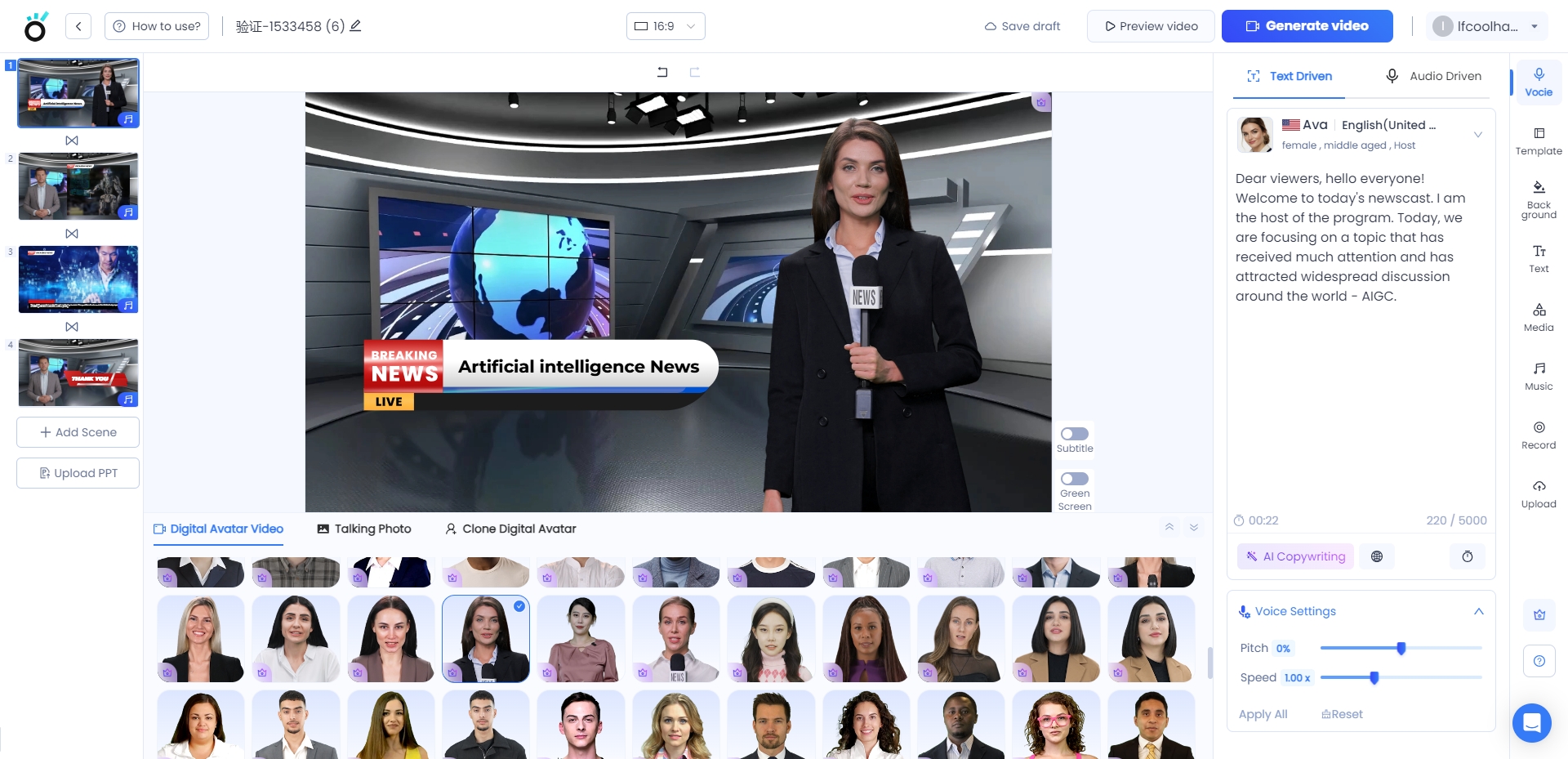
Step 1: Choose a Digital Human Avatar
Begin by selecting your preferred AI digital human avatar. Simply click on an avatar to change its appearance.
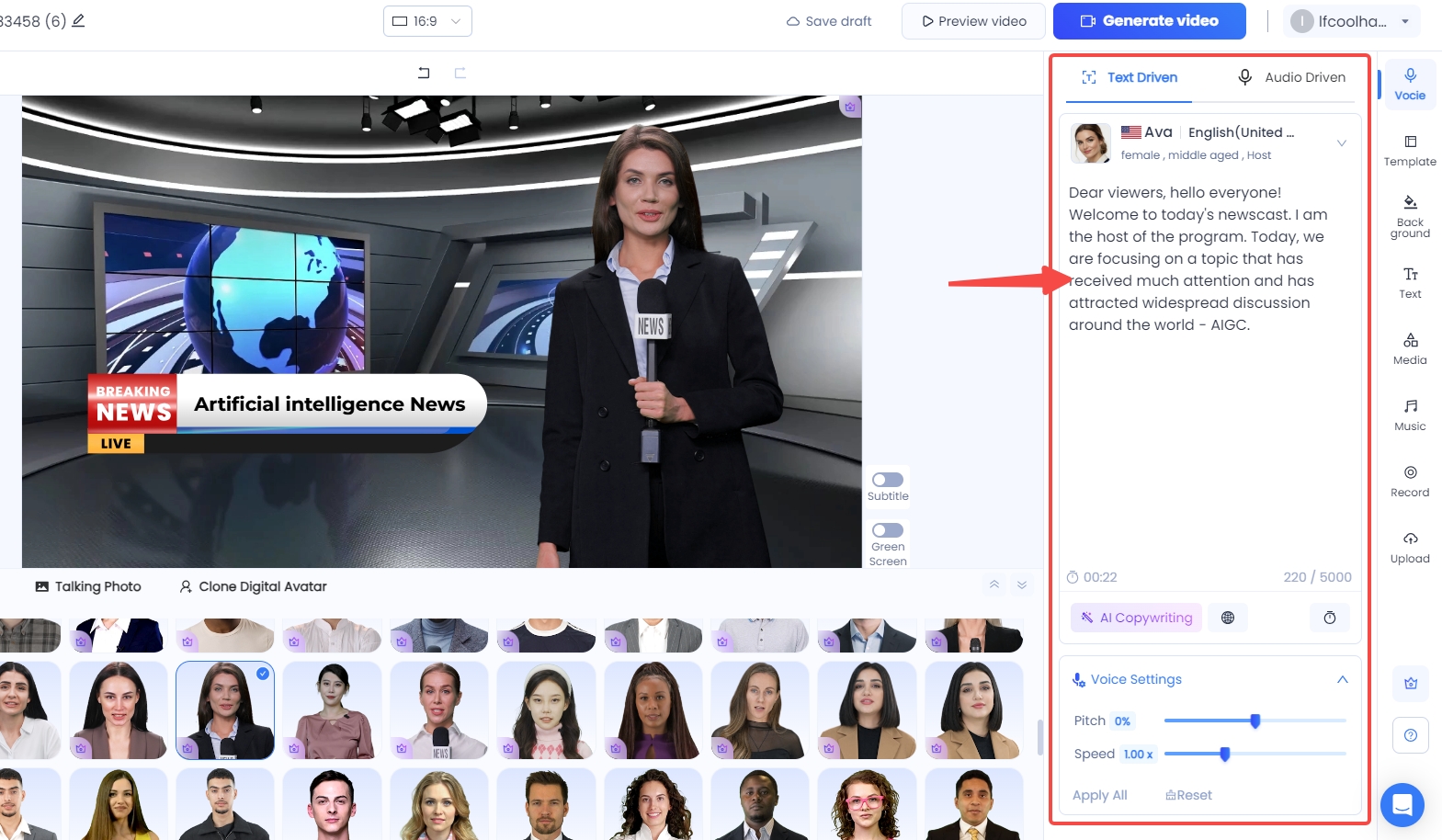
Step 2: Set the Script
1. Enter Your Text Prompt
Type your script directly into the text box to make the digital human speak.
Alternatively, use KreadoAI’s AI Copywriting tool to generate text automatically:
Enter relevant keywords (separate multiple keywords with commas).
Select the desired word count and click "Start Generating".
Choose a generated text and click "Use Text", or regenerate if needed.
2. Upload an Audio File
You can also drive the digital human with pre-recorded audio:
Click "Audio Drive" to upload an MP3 file.
Ensure the file is under 50MB, no longer than 10 minutes, and has clear, even audio.
Step 3: Customize the Digital Human’s Voice
Open the Voice Settings on the right-hand side.
Filter by Preferences – Choose the voice language, gender, age, tone, and use case. Click "Apply" or "Apply to All Scenarios".
Add Pauses – Insert up to 0.5-second pauses at specific text positions.
Adjust Speed & Pitch – Modify the voice’s pace and pitch to match your needs.
Preview the Audio before finalizing the voice settings.
Step 4: Personalize Video Settings (Optional)
Modify Basic Settings
Change the project name.
Adjust the canvas ratio.
Enable or disable green screen and subtitles.
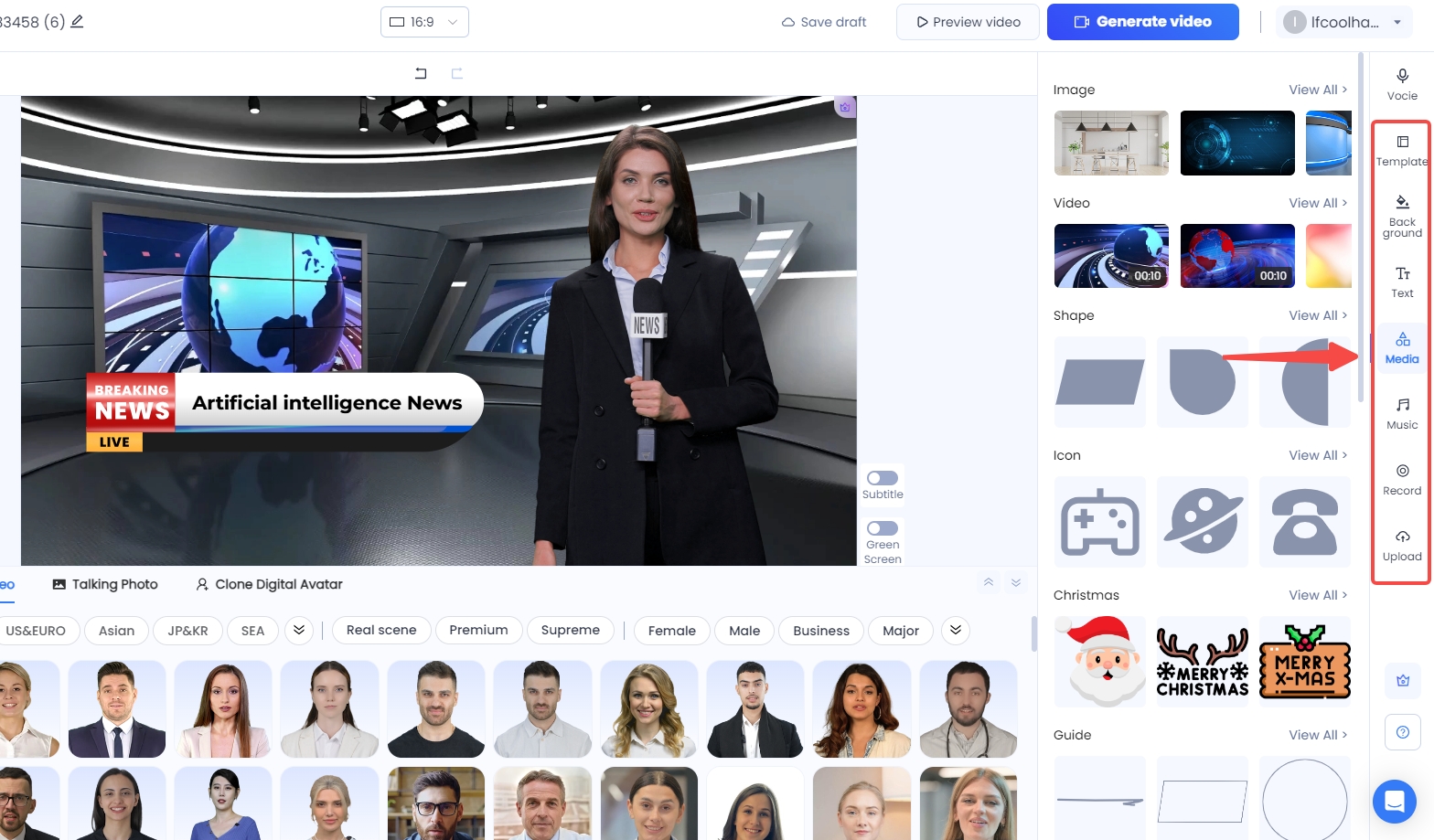
Set the Background
Click "Background" to choose a pre-set or upload your own image/video.
Add Text
Click "Text" to insert and customize on-screen text.
Add Elements
Click "Elements" to add stickers, adjust size, opacity, and layering.
Add Music
Click "Music", choose a style, and apply it to one or all scenes.
Add Scenes
Click "Add Scene" to create multiple video sections. You can also delete, copy, upload PPT, or add new scenes.
Step 5: Preview the Video
Click "Preview" to watch your video before finalizing.
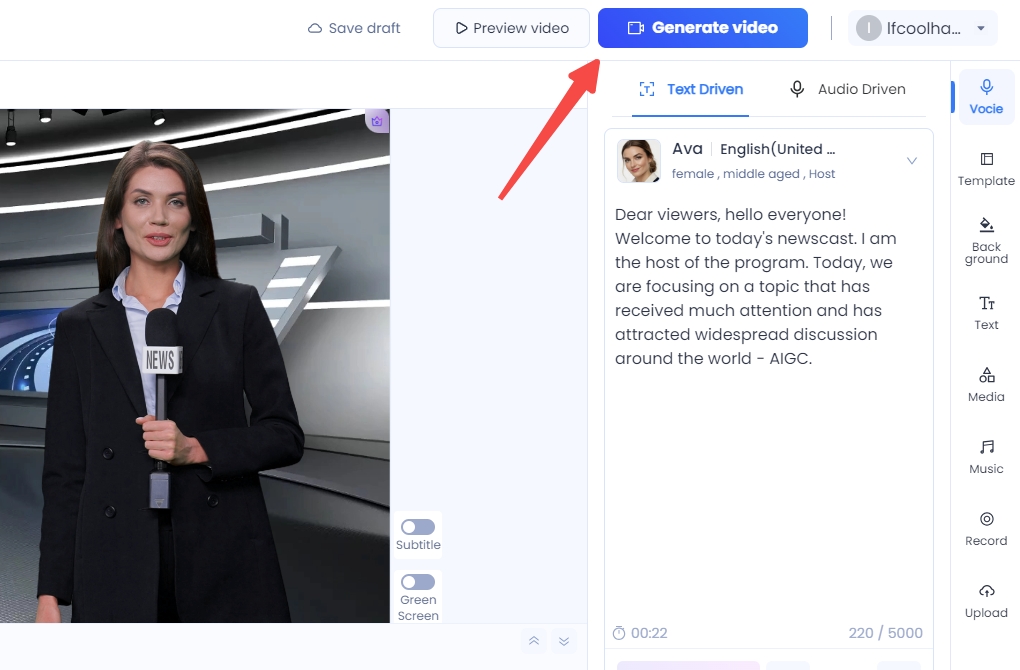
Step 6: Generate the Video
Once satisfied, click "Generate Video" and then "Start Generating Video" to begin processing.
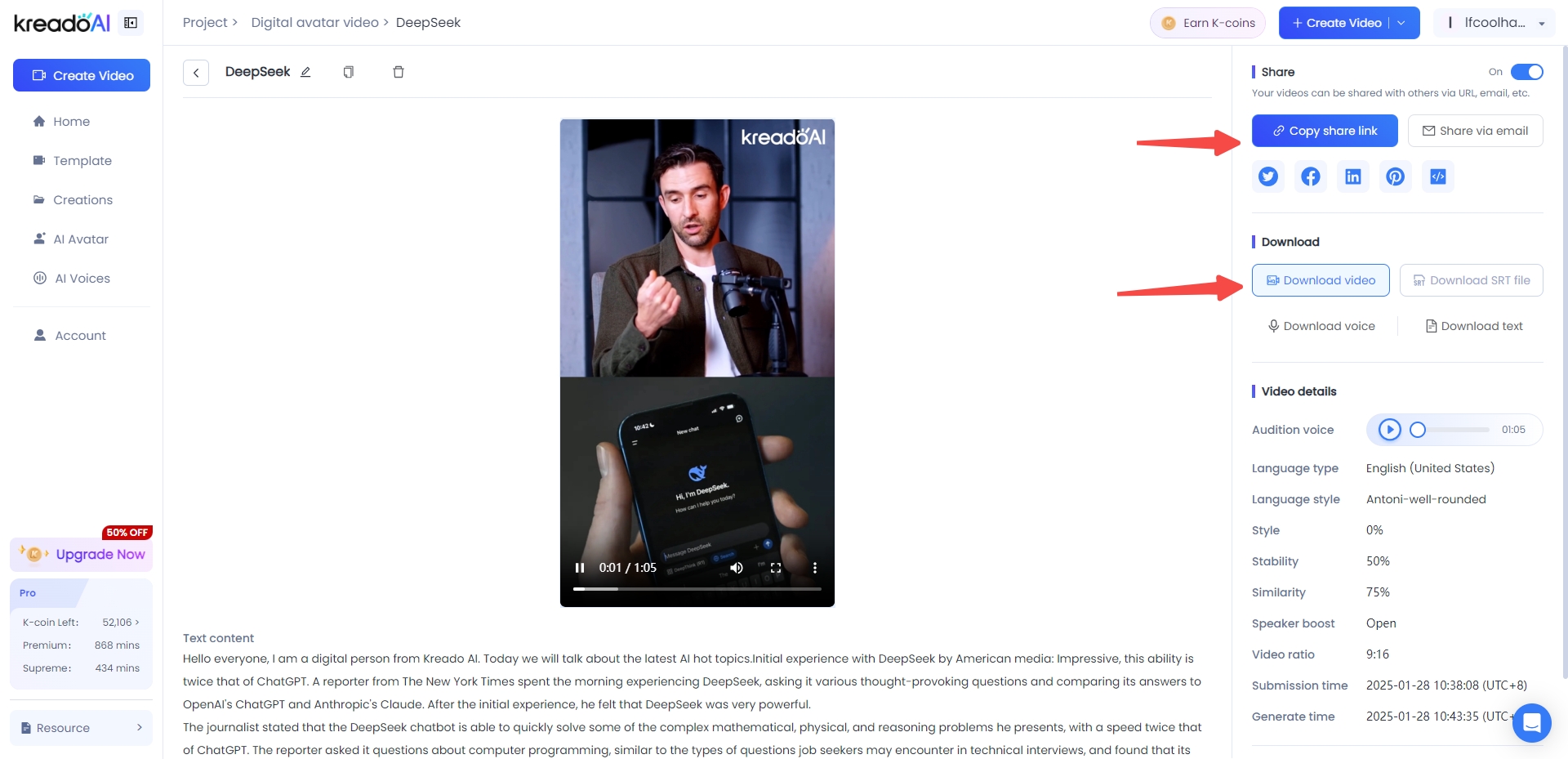
Step 7: Download the Video
Go to "My Projects" and click to download your final video.
Step 8: Share on Social Media
Click "Share" to instantly post your video on social media platforms.
KreadoAI lets you create AI-driven Digital Avatar videos in minutes using your text or keywords, with 140+ languages and 700+ templates.