

You can make a Google Veo 3 clip on KreadoAI from a written prompt, or from a still image plus a prompt that describes the motion. This guide walks through that screen: what to prepare, how text input and image input differ, why the clip is 8 seconds, and when Veo 3.1 is the better next stop.
The controls below are the ones on the Google Veo 3 generator linked from the model page, checked on 14 October 2026. If a control is not on that screen, it is not part of this workflow.
What You Need Before Generating a Veo 3 Video
Bring one input and a short shot description.
Use a text prompt when you do not have a frame yet. Use an image when the product, person, or place should stay recognizable. The image should show the full subject, not a crop that cuts off a label, a face, or a horizon.
Write down four things before you open the form: who or what is in frame, the single action, where it happens, and how the camera moves. Eight seconds is enough for one of those actions. It is not enough for a scene change plus a dialogue scene plus a new location.
Sign in to KreadoAI. The generator shows the allowance available on your account before you run it. The Veo 3 page includes one free video, so you can complete this walkthrough once without treating the page as a pricing guide. Check the allowance on screen rather than assuming a later run is still free.
How to Generate a Video from Text with Veo 3
Text and image share one generator. You do not pick a separate “text mode.” For a text-only clip, leave the image slot empty and write the shot in the content prompt.
- Open the Google Veo 3 page and start the generator. On the form, set Generate model to Google Veo3. If another model is selected, the steps below do not apply.
- Skip Select image.
- Write the content prompt. Name the subject, one action, the setting, and the camera move. Skip stacks of quality adjectives. “Cinematic, high quality, 8k” does not tell the model what moves.
- Set the options that are actually on this screen. Resolution is shown as 1080P. Video Ratio offers 16:9 and 9:16. Generation Time is 8S. Generate audio is a switch: turn it on only if this shot needs sound, and say what that sound is in the prompt.
- Click Generate and wait for the preview. There is no published time guarantee on the page, so do not plan a live shoot around a fixed number of seconds.
- Watch the preview once with the prompt beside you. Check that the subject did the action you wrote, and that the camera move matches.
- If the action is wrong, change one instruction and use Regenerate. When the preview matches the shot, use Download on the player.
A text prompt that fits the form:
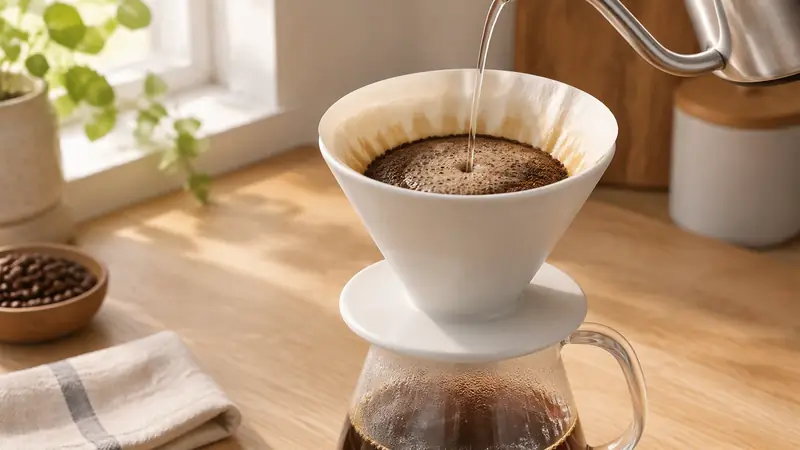
A matte white ceramic pour-over dripper on a pale oak counter. One thin stream of water pours from a gooseneck kettle into the dripper, the grounds bloom once, then the stream stops. The camera slowly pushes in. Soft morning window light from the left.
That is one action (pour and bloom) and one camera move (push in). Paste it into the content prompt with Generate model on Google Veo3.
How to Turn an Image into a Veo 3 Video
Use Select image on the same Google Veo3 form. The page supports an uploaded image as the start frame. It does not ask you to switch products.
Pick a still where the subject is complete and the important edges are inside the frame. A bottle with the label cut off, or a person cropped at the eyes, gives the model less to hold onto.
Write the prompt as the change you want, not as a caption of the still. “A white bottle on a table” repeats the picture. “The same bottle stays put while a single drop falls from the dropper and the camera pushes in” tells it what to move.
Keep the product shape, a person’s face, and the key colors stable. In one 8-second clip, change the action or the camera, not both the identity and the room. If you need a new outfit and a new street and a spoken line, that is a different shot.
After Generate, look for three failures: the product warps, a limb or handle bends, or the background jumps to a new place. If you see one of those, regenerate with a shorter action. Do not add more objects to “fix” a warp.
Ratio, resolution, the 8-second generation time, and the generate-audio switch work the same way as in the text steps. Choose 9:16 when the still is already vertical. Choose 16:9 when the still is wide. Do not expect the frame to invent a new composition outside the picture you uploaded.
How Long Is a Veo 3 Video?
On this generator, Generation Time is 8S. The Veo 3 page states the same limit: one clip up to 8 seconds. Plan the shot so the action starts and finishes inside that window.
A usable prompt line is: Subject + Action + Setting + Camera Movement + Visual Style + Sound (only if Generate audio is on)
Visual style here means a concrete light or material, not a pile of praise words. “Soft morning window light” is a style note. “Ultra realistic masterpiece” is not.
Sound belongs in the prompt only when the switch is on, and only as something the picture can support. A pour can take a water sound. An 8-second clip will not perform a conversation with several speakers. If the line does not happen on screen, leave it out. Turning Generate audio on does not guarantee the line you wrote.
Design the 8 seconds like this: the action is visible in the first two seconds, it completes once, and the camera move does not reverse. A pour that starts, blooms, and stops fits. A character who enters, sits, orders, and leaves does not.
Tips for Better Veo 3 Video Results
Keep each prompt to one main action. If you can cut the sentence in half and the shot still makes sense, cut it.
Name the camera move. “Slow push in,” “tracks beside them at waist height,” and “pans right” are instructions. “Dynamic camera” is not.
State how the subject, the place, and the action connect. “The dripper stays on the counter while water pours in” is a relationship. “Beautiful coffee scene” is a mood.
On an image start, do not restyle the subject and move the camera and change the weather in the same pass. Hold the subject. Move one thing.
If you want sound, name the source. “Water hitting the grounds” is checkable. “Epic soundtrack” is not, and this screen is not a music editor.
Change the prompt from the result you got. If the bloom never happens, add “the grounds bloom once” and remove a second camera instruction. Do not append a new paragraph of unrelated detail.
Three prompts you can paste. Each is one shot. The stills and clips were rendered on KreadoAI to show the shot the words describe. Paste the same words into the Google Veo3 form and judge that preview. A match is not guaranteed.
Product: one pour
A matte white ceramic pour-over dripper on a pale oak counter. One thin stream of water pours from a gooseneck kettle into the dripper, the grounds bloom once, then the stream stops. The camera slowly pushes in. Soft morning window light from the left. Sound, if enabled: water hitting the grounds, then quiet.
Person: three steps, then a look
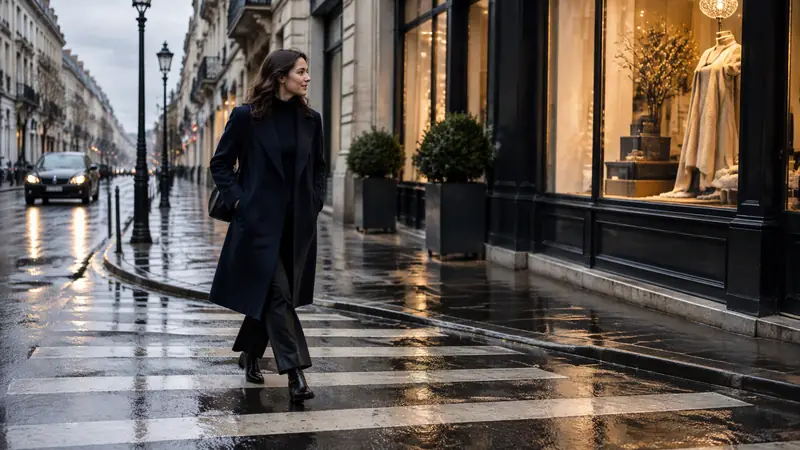
One person in a navy wool coat takes three steps across a wet city crosswalk, then stops and turns their head toward a shop window. The camera tracks beside them at waist height. Overcast daylight, reflections on the pavement. No second person.
Place: wind, then a pan
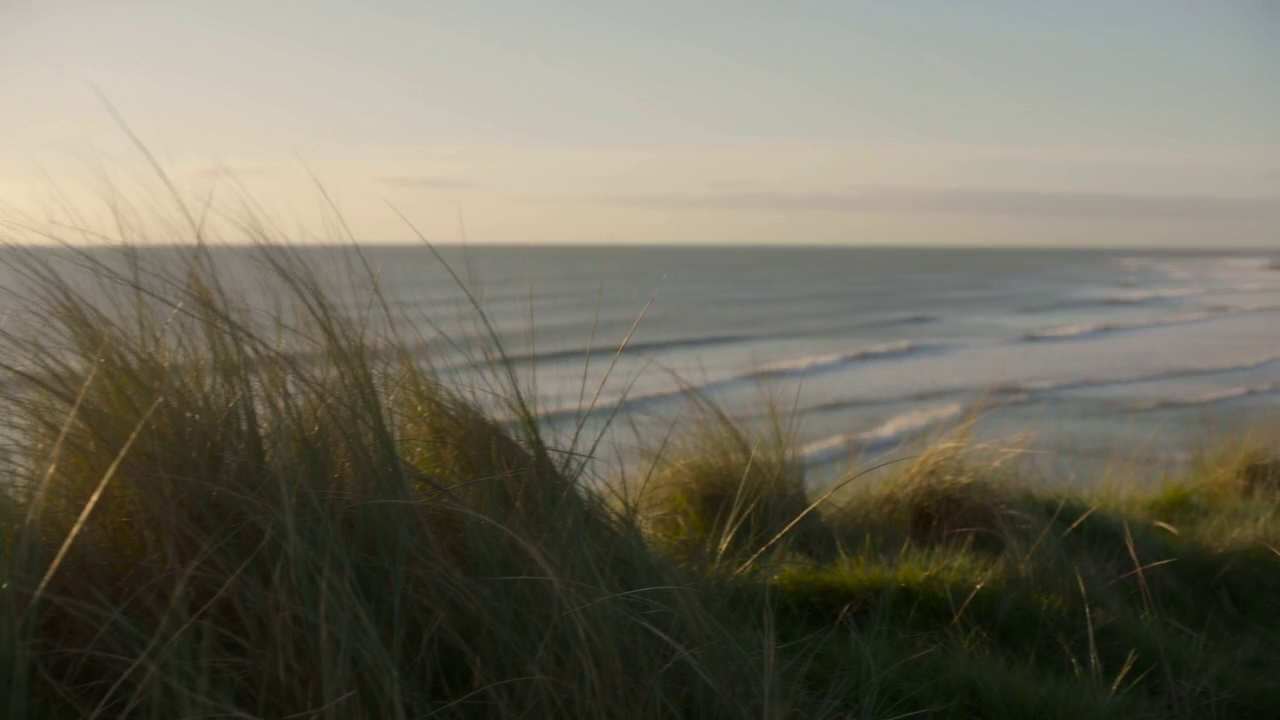
A quiet coastal path in late afternoon. Tall grass in the foreground moves in the wind while the camera slowly pans right toward a pale sea and low cliffs. No people. Sound, if enabled: wind in the grass only.
If a run misses, fix the verb or the camera line. Leave the subject alone.
When Should You Use Veo 3.1 Instead?
Stay on Veo 3 when you are generating a clip from text or from an image with the flow above: one subject, one action, 8 seconds, 16:9 or 9:16, audio on or off.
Move on when the point of the clip is generated dialogue or a sound design you can direct, not a single effect like a pour. KreadoAI publishes that version separately. Read Veo 3.1 for the controls and limits on that page, and do not assume every audio claim on Veo 3 transfers. A full version comparison is a different article. This one only tells you which page to open.
Frequently Asked Questions
How do I generate a video with Veo 3?
Open the Google Veo 3 generator, set the model to Google Veo3, write a content prompt with one action and one camera move, set ratio and the 8-second generation time, then click Generate. Preview the clip and download it from the player.
Can I create a Veo 3 video from an image?
Yes. On the same form, use Select image, then write a prompt that describes the motion rather than repeating the still. Keep the subject’s shape and key colors stable, and check the preview for warping.
How long can a Veo 3 video be?
The generator shows Generation Time as 8S. Build one finished action inside those 8 seconds.
How can I improve my Veo 3 prompts?
Use one action, name the camera move, and connect the subject to the place. On the next run, change the line that failed. Do not add a second scene.
When should I use Veo 3.1 instead of Veo 3?
Use Veo 3 for this text or image workflow. Open the Veo 3.1 page when generated dialogue and sound are the reason you are making the clip, and confirm what that page actually offers before you switch.
Start Creating with Veo 3
Text input is a content prompt on an empty image slot. Image input is Select image plus a prompt that only describes the move. Both use Google Veo3, 1080P on the current screen, 16:9 or 9:16, and 8 seconds. Preview before you download, and regenerate when one action is missing.