
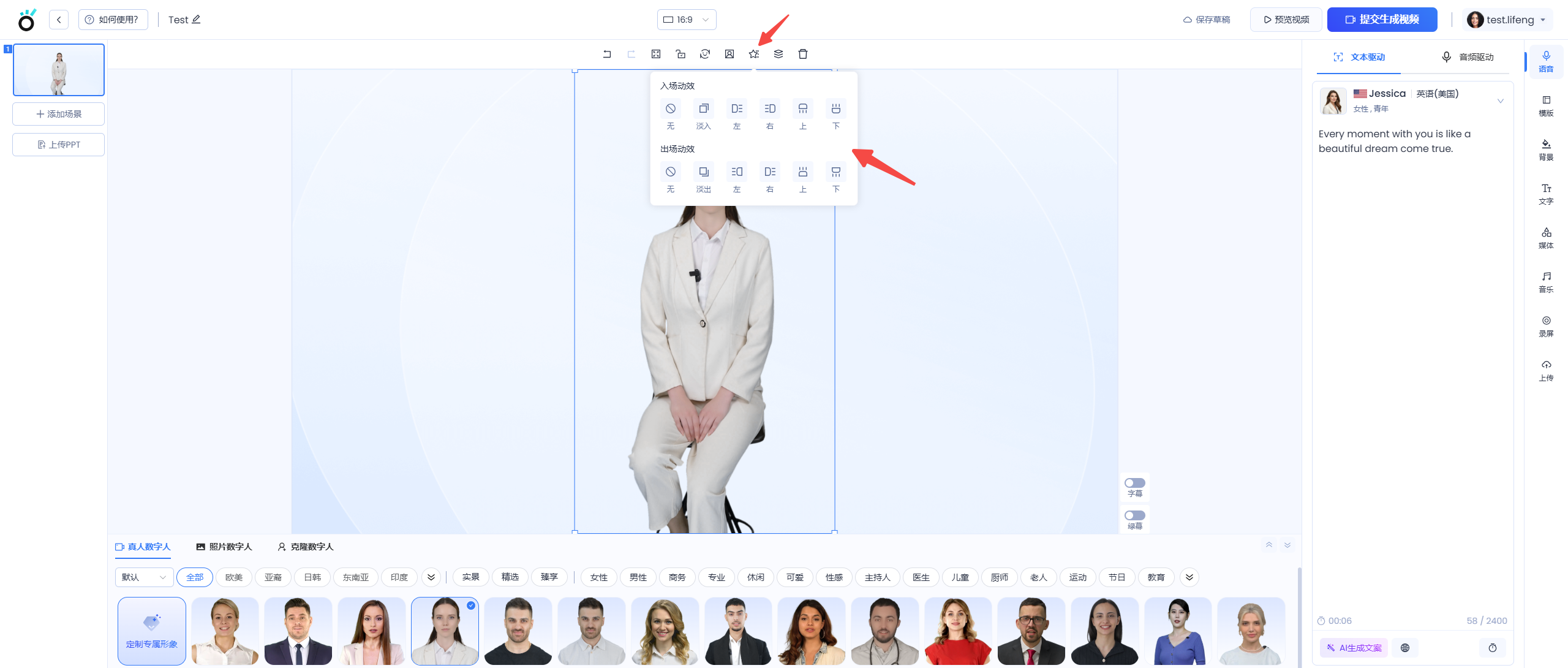
1.How to Add Animations?
Steps to Apply Motion Effects:
🔹Open KreadoAI's video creation page.
🔹Select the element you want to animate.
🔹Choose an animation and preview the effects one by one.
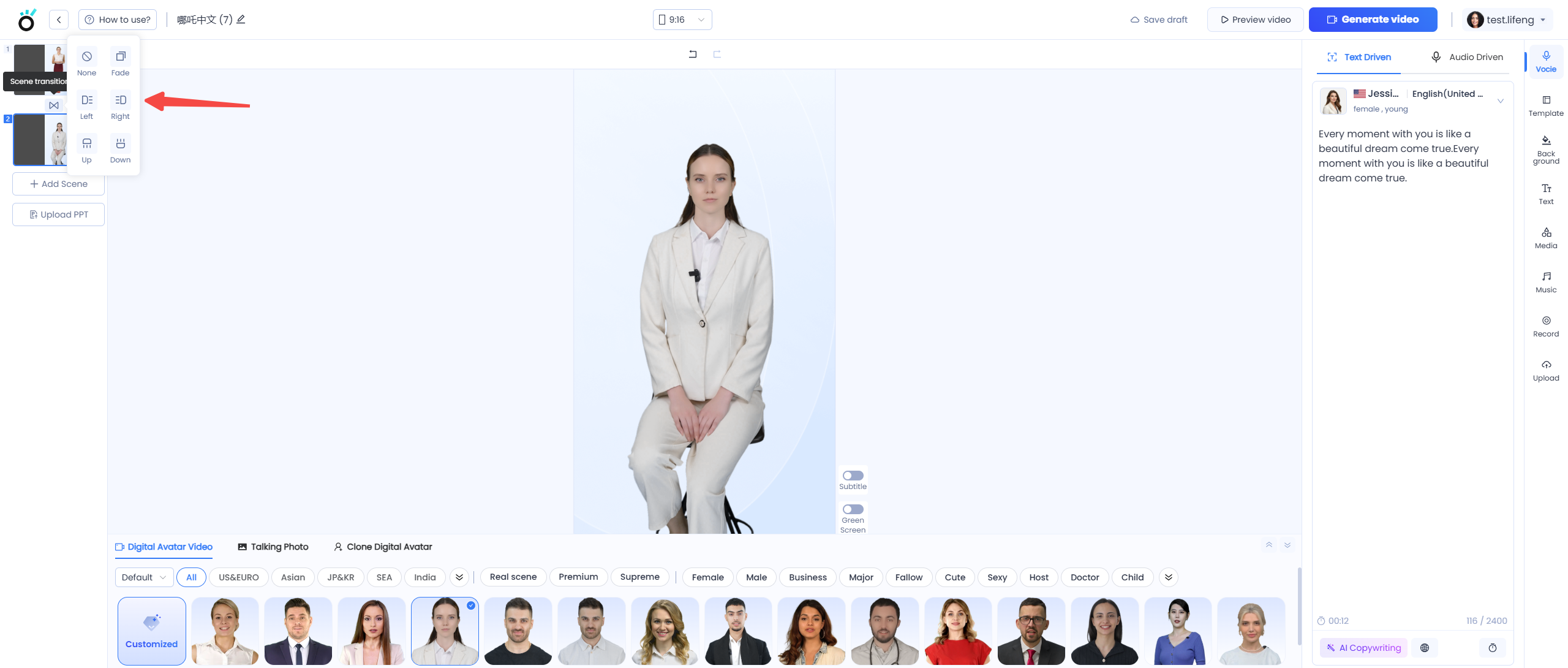
Steps to Apply Transition Effects:
🟢Open the AI video creation page.
🟢Insert a transition effect between two scenes.
🟢Preview the effects one by one.
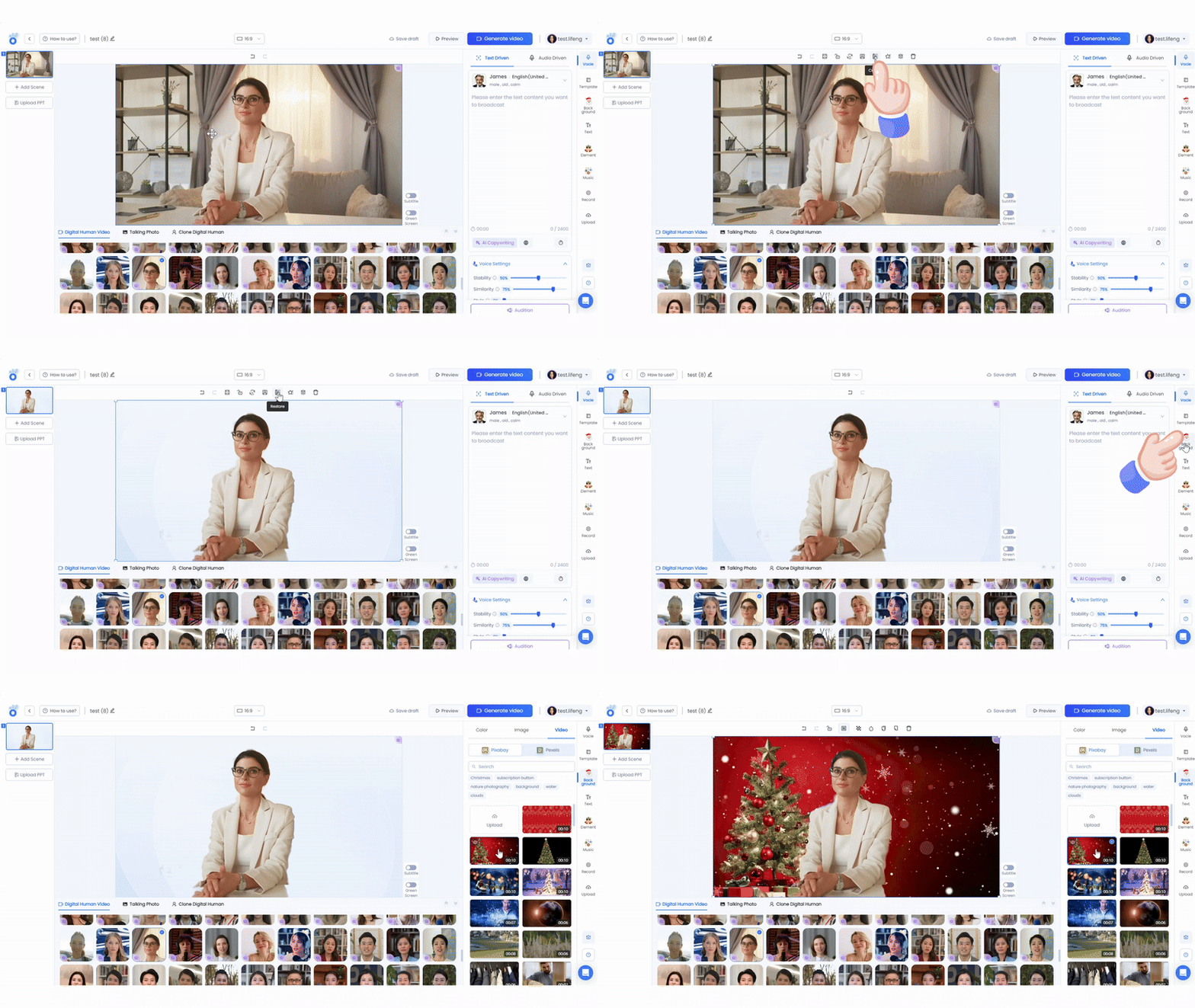
2.How to Separate the Digital Human from the Background?
Steps:
🟢Select the digital human.
🟢In the menu bar, choose 'Cutout'.
🟢Wait for the process to complete.
(After removing the background, you can add various background effects to the digital human.)
3.How to Upload a Logo?
Steps:
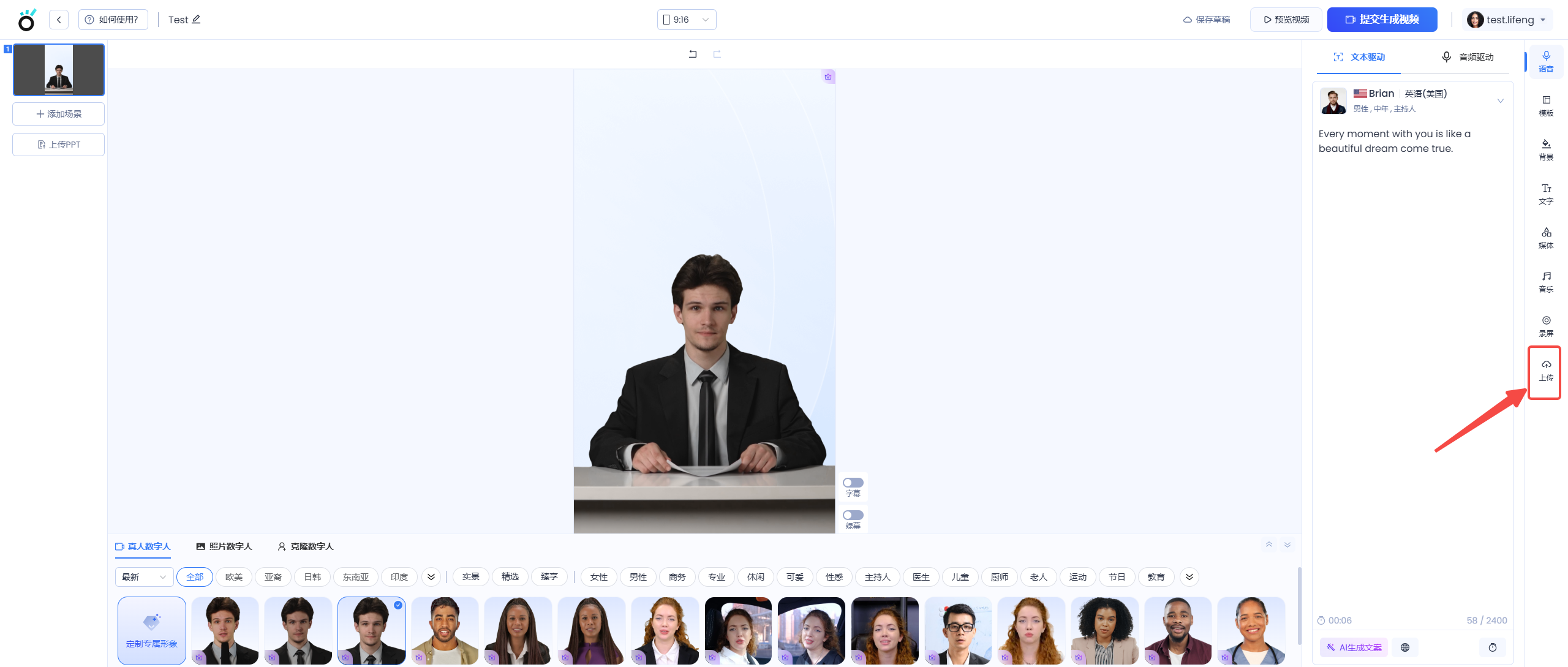
🟢Click the "Upload" button in the bottom-right corner and upload your image (supports JPG, PNG, and GIF formats).
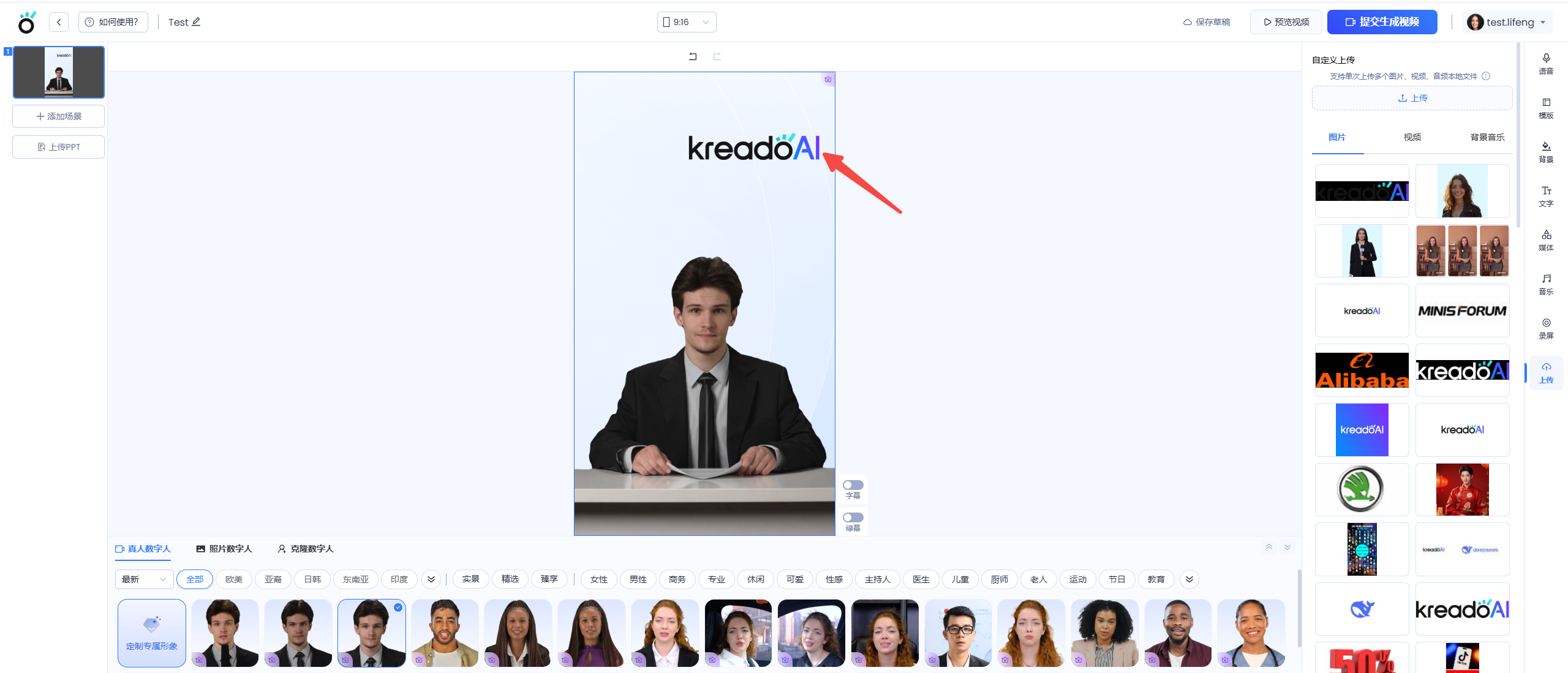
🟢Select the uploaded logo and adjust its size to fit appropriately.
4.How to Edit a Completed Video?
If you need to make changes after finishing a video:
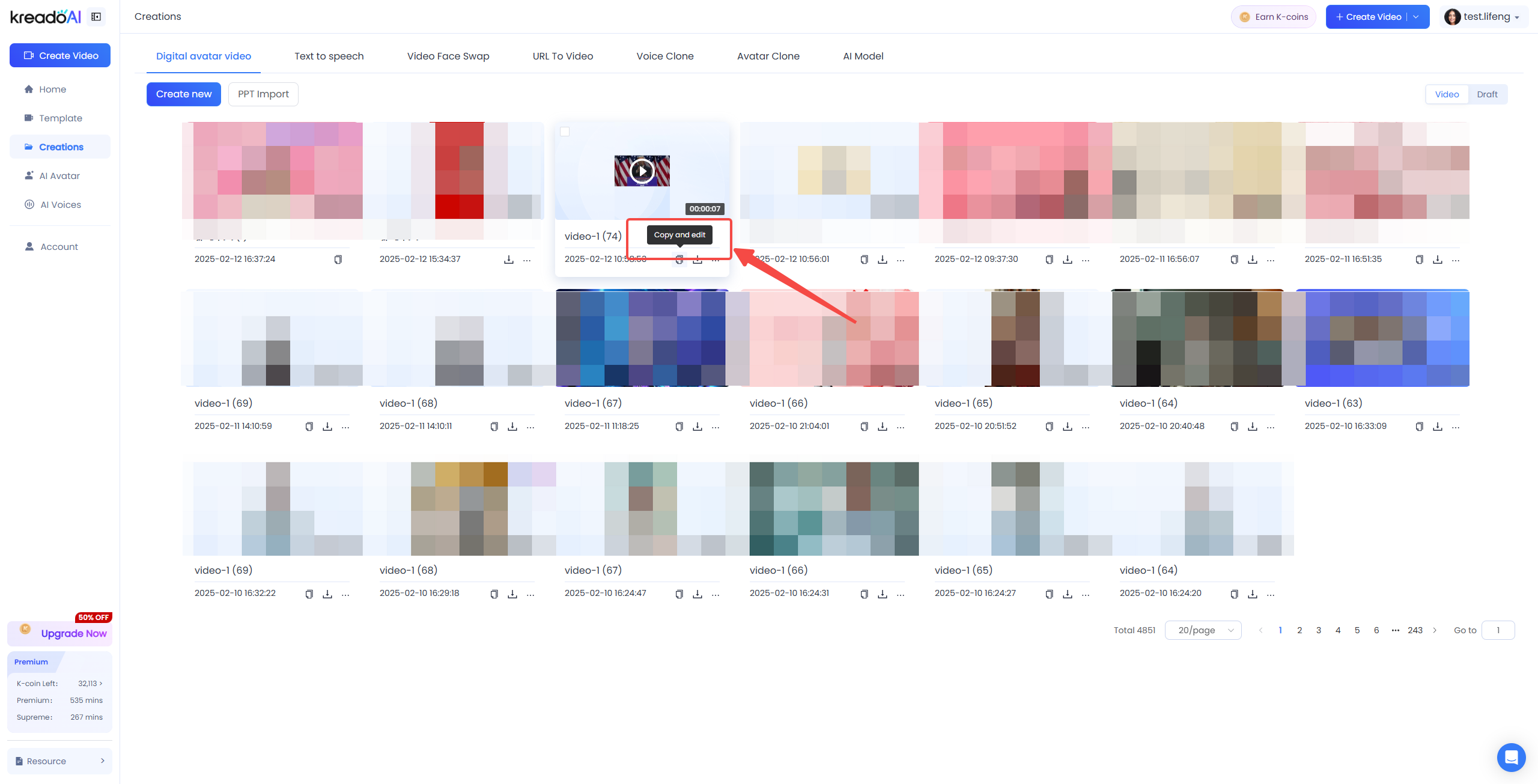
🟢Go to "My Creations" and select the video you want to edit.
🟢Click "copy and edit", then adjust the details as needed.
🟢Once confirmed, regenerate the video.
(Tip: Regenerating will consume K-Coins. Use the preview feature to confirm your changes before regenerating.)
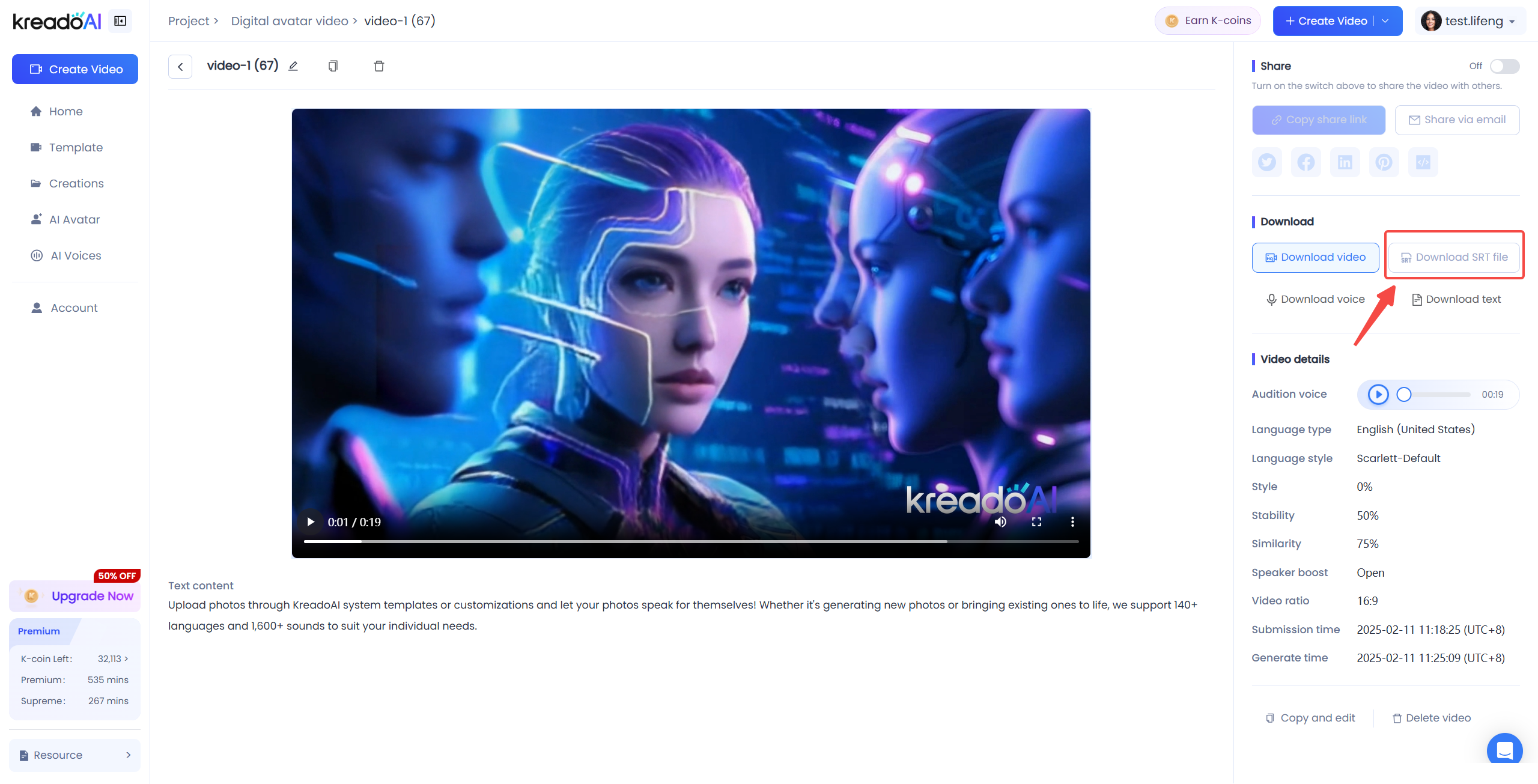
5.How to Download Subtitle Files?
🔵Go to "My Creations" and open the video details page.
🔵Click "Download SRT File" on the right side.