

KreadoAI Now Supports Doubao Seedream 4.5 | Stunning New AI Image Generation Upgrade
KreadoAI Image Generator has newly integrated the Doubao Seedream 4.0 model, supporting diverse tasks such as text-to-image generation, image-to-image generation (based on reference images), image editing, and batch image generation.
This article is a Doubao Text-to-Image Tutorial, explaining the prompt usage tips for Seedream 4.0 to help you get started with image creation quickly and turn your ideas into images.
👉Try Doubao Seedream 4.0 on KreadoAI for Free!
What should a good prompt be like?
Your prompt should include the following elements:
√ Main Content: Clearly state the subject, action, and environment in concise and coherent natural language.
√ Style: Use specific style keywords (e.g., sci-fi, horror films, film noir, cartoons) to specify the creative direction. You can also upload an image for reference.
√ Operation (for image editing): Specify the object that needs modification or reference, as well as the specific operations. Avoid using pronouns with ambiguous references.
√ Purpose: If there is a clear application scenario, it is recommended to specify the image’s purpose and type in the text prompt.
√ Composition: Composition methods, such as wide-angle, medium shot, close-up, etc.
If you have high requirements for visual aesthetics, you can also add elements like color, lighting, and atmosphere.
How to Write Prompts for Different Tasks
👉Text-to-Image
Describe the image clearly using natural language and accurate professional terms.
It is recommended to specify the subject + action + environment in concise and coherent natural language.
If you have requirements for visual aesthetics, you can supplement aesthetic elements such as style, color, lighting, and composition with natural language or phrases.
For images with rich details, you can precisely control the image details through detailed text descriptions. Note that when using Seedream 4.0, using concise and precise prompts is usually better than repeatedly piling up flowery and complex words.
For example:
[Prompt]
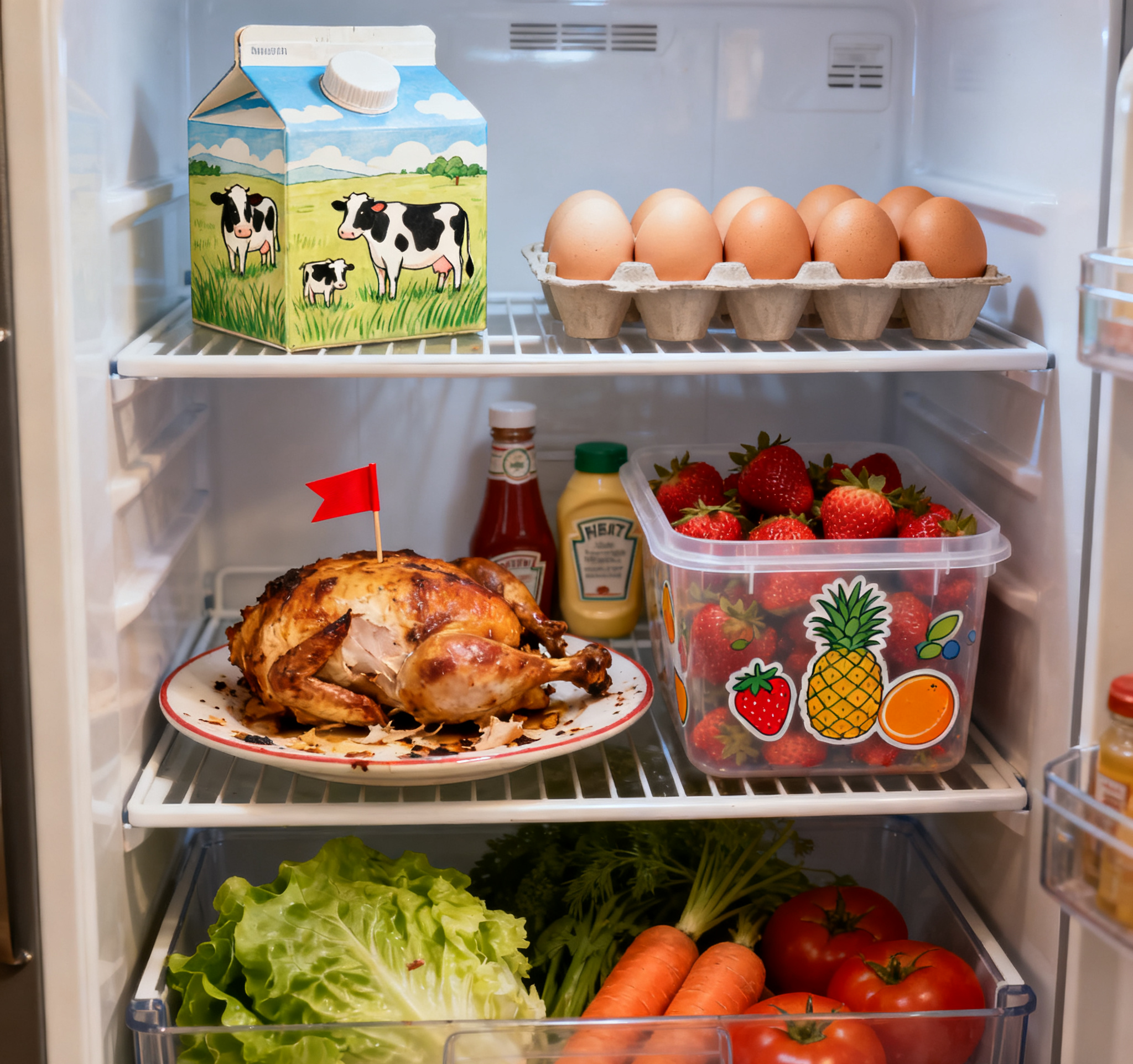
Open interior view of a refrigerator:
Upper shelf: A carton of milk is placed on the left. Three cows of different sizes are drawn on the milk carton, grazing on the grassland. On the right is an egg holder with eight eggs inside.
Middle shelf: A plate with leftover roasted chicken, and a small red flag is inserted into the roasted chicken. Next to it is a transparent fresh-keeping container filled with strawberries, with patterns of pineapples, strawberries, and oranges printed on the container.
Lower shelf: The vegetable drawer contains lettuce, carrots, and tomatoes.
Storage rack on the inside of the refrigerator door: Ketchup and mayonnaise are placed here.
[Output Result]
In addition, Seedream 4.0 can convert knowledge and reasoning results into high-density image content, such as formulas, charts, educational illustrations, etc.
During generation, you should clearly use professional terms to ensure the accurate expression of knowledge points, and specify the specific requirements for the generated image, such as visualization form, layout, style, etc.
👉Image-to-Image: Clarify the Reference Object and the Generated Image
When there are clear features to retain (such as character image, visual style, product design), you can use precise style keywords (e.g., picture book, children’s picture book) or upload an image as a reference to ensure the generated result aligns with your expectations. If text needs to be generated in the image, it is recommended to enclose the text content to be generated in double quotation marks.
Taking uploading a reference image as an example, you only need to clarify two parts of content in the text prompt:
Specify the reference object: Clearly describe the elements you want to extract and retain from the reference image, such as the character image in the reference image, the product material in the reference image, etc.
Describe the generated image: Specifically explain the details of the image content, scene, etc., that you want to generate.
For example:
[Prompt]
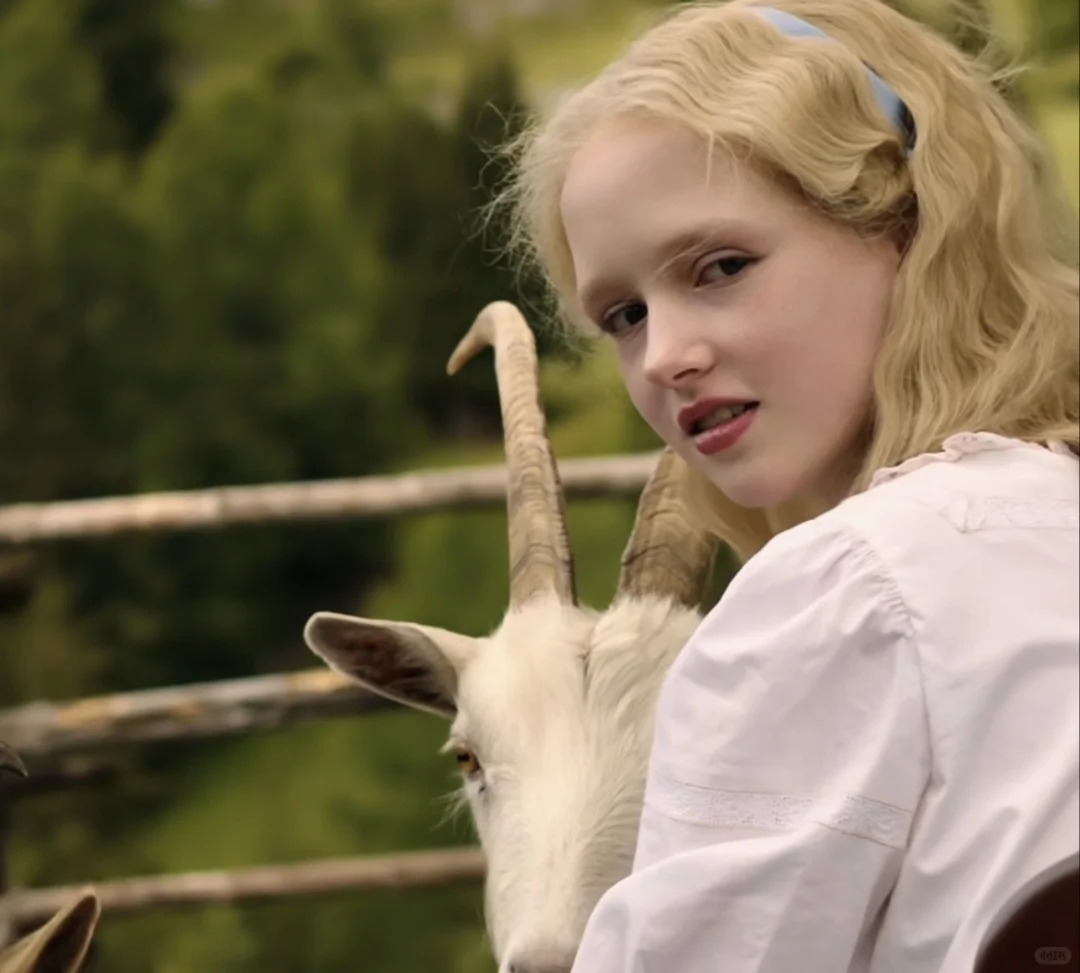
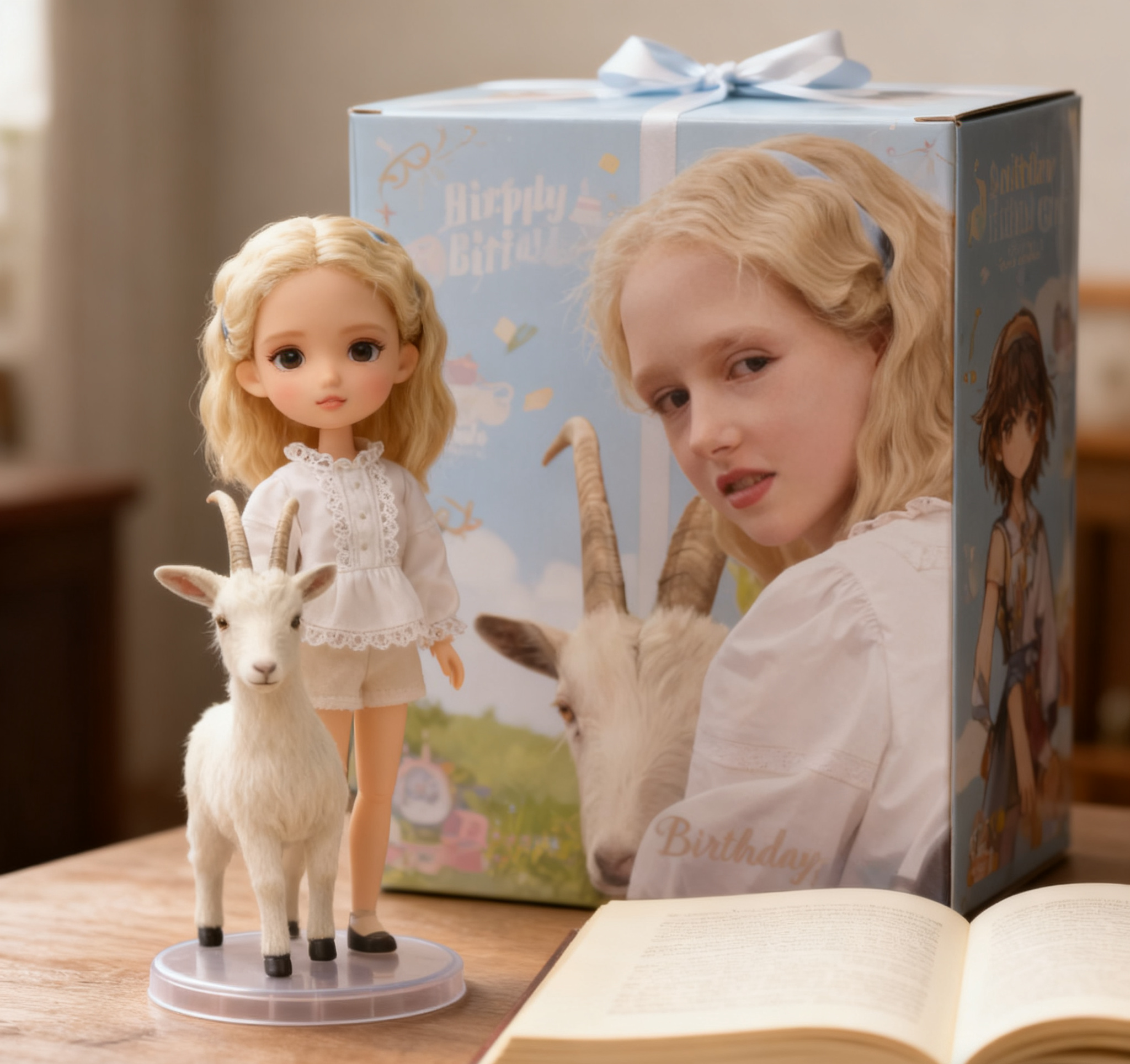
Refer to the character image in the reference image to create a character figurine. Place the figurine on a table, with a birthday gift box printed with the character’s image behind it. There is a book under the box. In front of the gift box, add a circular plastic base for the character figurine to stand on. Set the scene indoors and make it as realistic as possible; keep the generated size the same as the current image; position the figurine on the left side of the picture; maintain the same style as the original image, with a cinematic photography style.
[Input Image]
[Output Result]
👉Image Editing: Clarify the Image Editing Goal
Doubao Seedream 4.0 supports editing operations such as adding, deleting, replacing, and modifying elements in an image via text prompts. Use concise and clear instructions to specify the object that needs modification or reference, as well as the specific operation. Avoid using pronouns with ambiguous references; if you want all elements except the modified ones to remain unchanged, you can emphasize this in the prompt.
If you want to add elements to an existing image:
[Prompt]
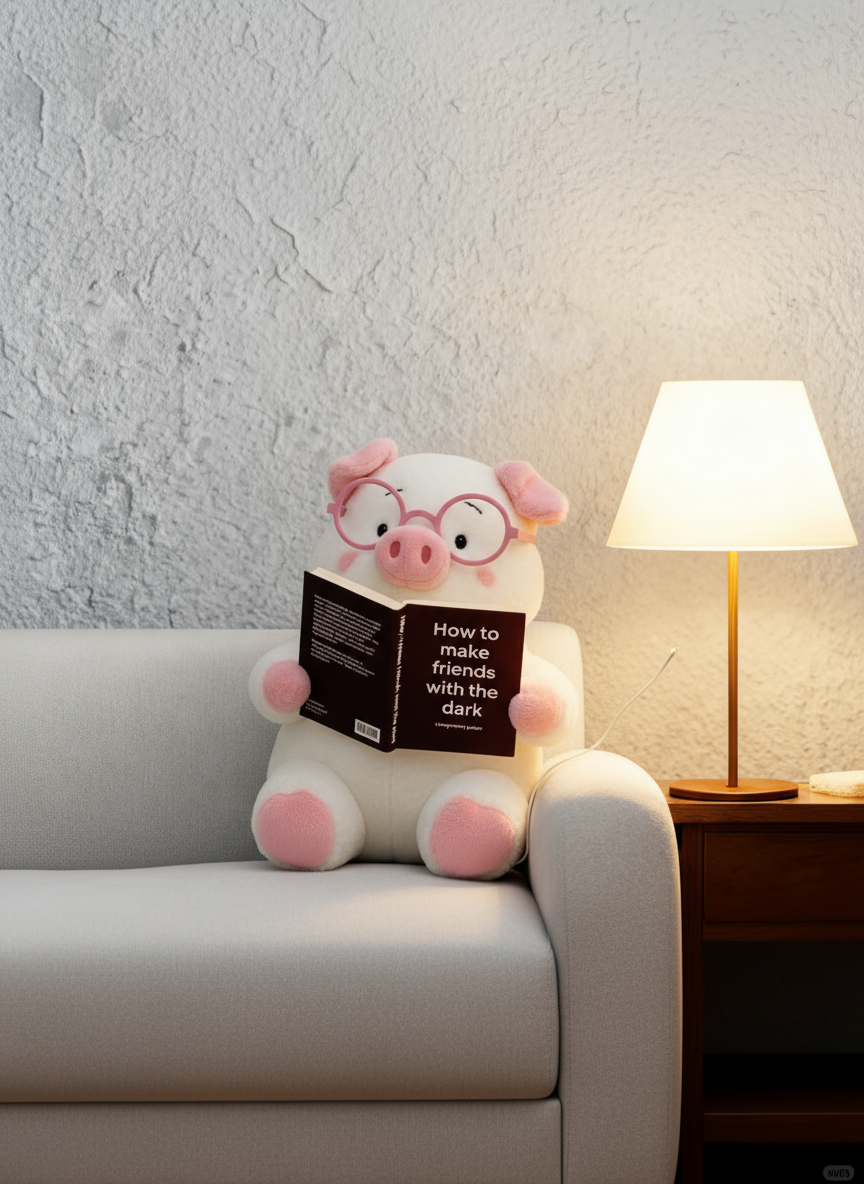
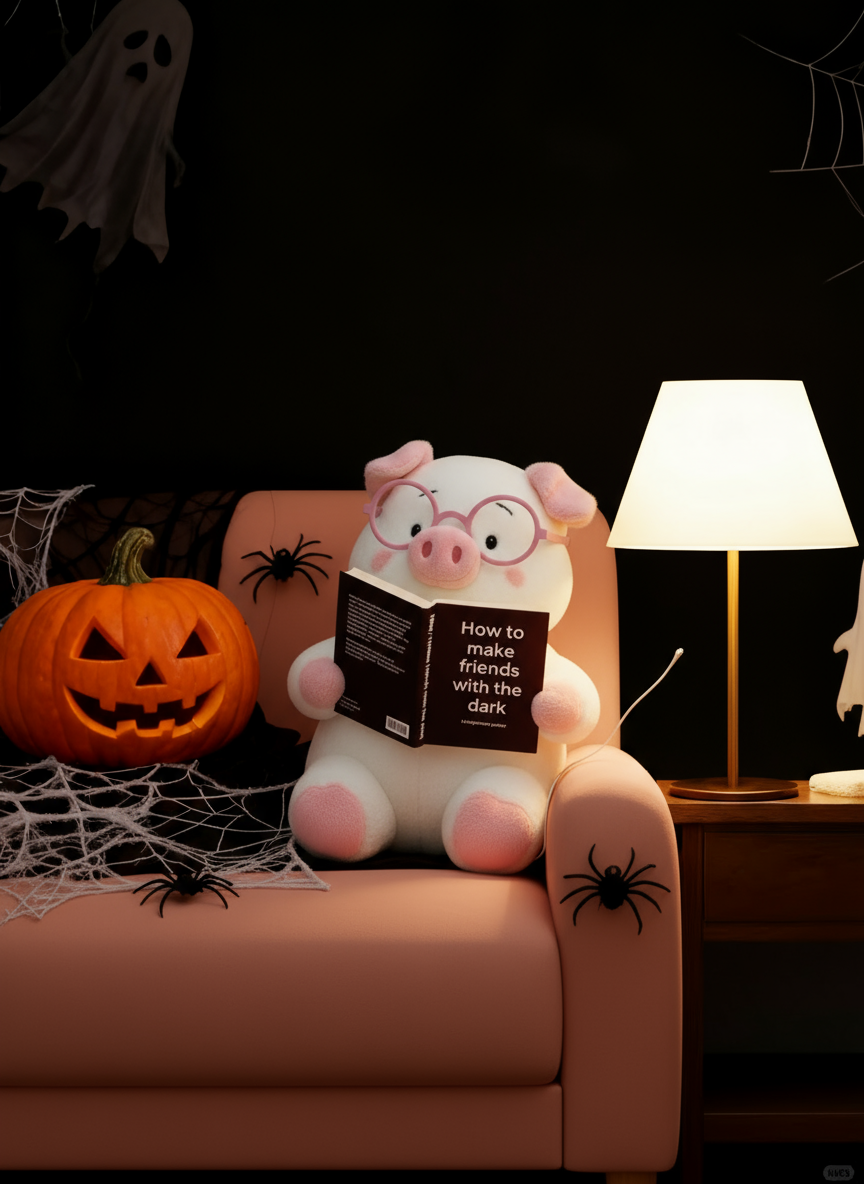
Keep the little pig unchanged, turn the entire image dark, and add Halloween elements such as pumpkin heads and spider webs on the sofa.
[Input Image]
[Output Result]
When the image content is complex and it is difficult to accurately describe the editing object via text, you can use arrows, wireframes, doodles, etc., to specify the editing object and its position.
👉Multi-Image Input and Output
Doubao Seedream 4.0 also supports multi-image input and output.
By inputting multiple images at the same time and clearly specifying in the prompt the objects to be edited/referenced in different images and the corresponding operations, you can complete complex editing operations such as replacement, combination, and migration.
When there is a need to generate multiple images, you can trigger the model to generate a set of images using prompts like "a series of", "a set of", or "a group of images", or specify the number of images using specific numbers.
🤩Try the KreadoAI Image Generator for free now and turn your ideas into high-quality images in an instant!